
Control how RoostPay reaches you, and keep your account secure, from Settings.
Notifications
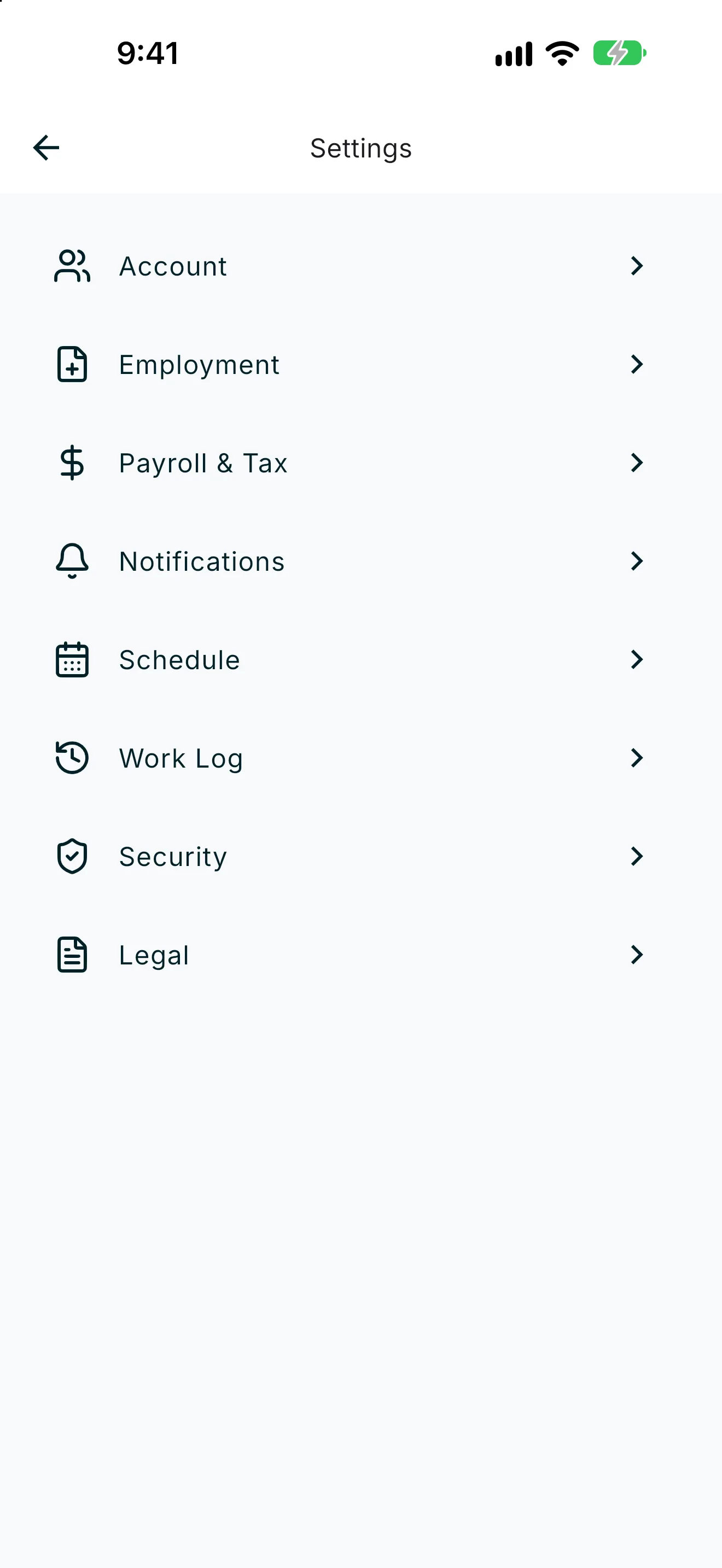
- Open Settings, then Notifications.
- Choose your Notification sound — Default or Silent.
- Use the bulk buttons to quickly turn all push, in-app, or email notifications on or off — for example, Enable All Push or Disable All Push.
- Scroll down to fine-tune individual categories, such as Schedule & shifts, Clock reminders, Time off & sick days, Expense claims, Payroll & tax, and Work permits. For each category, turn In-app, Push, or Email on or off.
Note: Tap the info icon next to any category to see exactly what it covers.
Security
- Open Settings, then Security.
- Under Sensitive actions, the Require confirmation toggle controls whether you confirm sensitive actions with Face ID, fingerprint, device PIN, or password. Turning this off removes that extra check for anyone using your session on this account.
Note: If identity checks are off, sensitive steps — such as payroll-related actions or approvals — may proceed without a separate confirmation while you're signed in. Only disable this if you accept that risk.
- Under Passkeys, tap Add passkey to sign in with Face ID, fingerprint, or your device lock instead of a password. Tap Remove next to a passkey to delete it.
- Under Change password, tap Change password to update it. Enter your Current password, then your New password and confirm it, and tap Change password again to save.
- Under Your devices, review devices that have signed in to your account, along with when each was last active. Tap Sign out of all other devices to keep only this device signed in, or Sign out everywhere to sign out on every device, including this one.
Note: Signing out everywhere requires you to sign in again on every device afterward.