
Expense claims your caregiver submits (for example, mileage or reimbursable purchases) appear under Expense claims on the Approvals page. Until the contract is signed, Approvals shows the setup message. An empty queue says You’re all caught up.
1. Open the Expense claims section
On Approvals, tap the Expense claims header to expand it. The badge shows how many claims are pending, and the history icon opens the Expense Claims History Report.
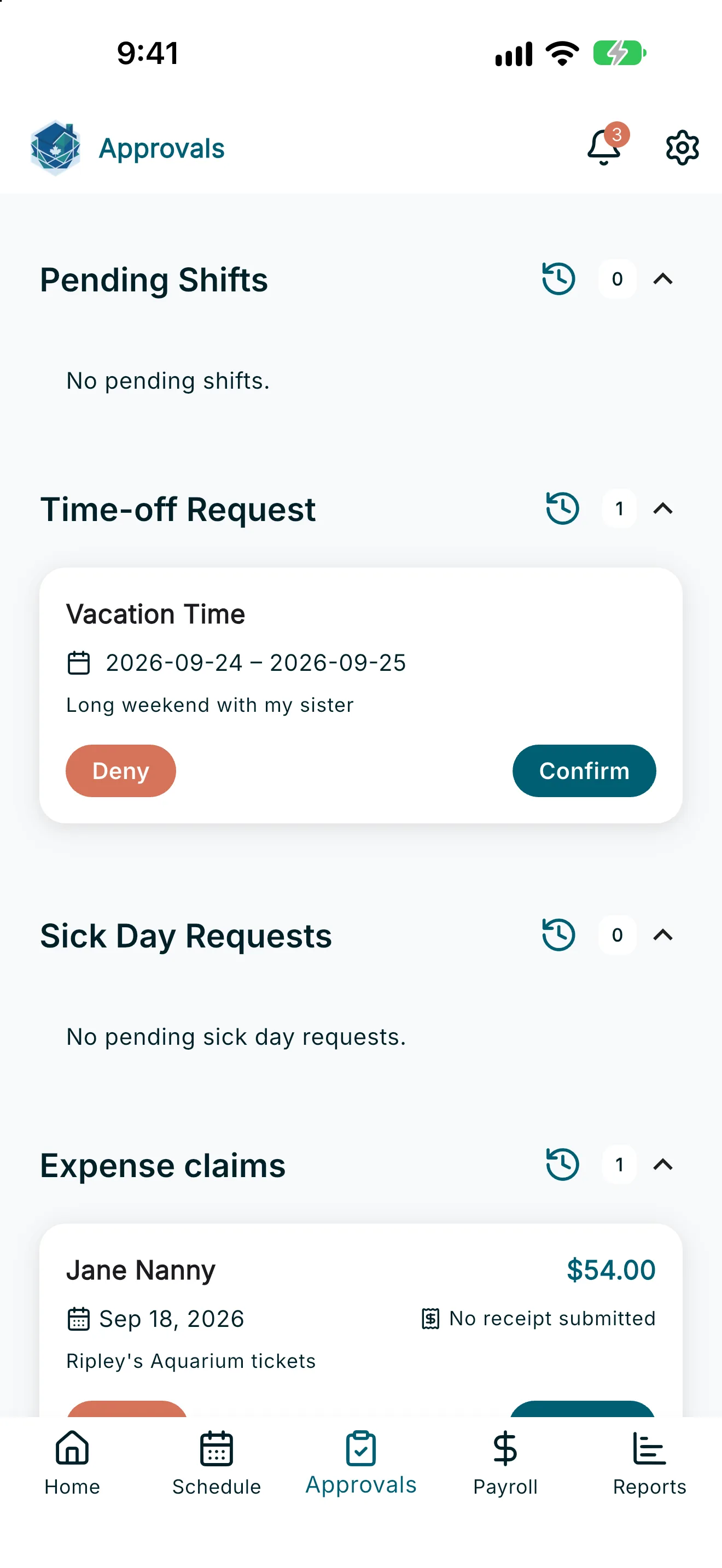
Each card shows the employee’s name, the claim amount, the expense date, and a short description.
2. View the receipt
- Tap View receipt to open a preview of the uploaded receipt image.
- If the employee didn’t attach one, the card shows No receipt submitted instead.
3. Approve or reject a claim
- Tap Approve to approve the claim immediately — no confirmation dialog needed.
- Tap Reject to open a sheet where you enter a Reason for rejection, then confirm. Your employee sees this reason.
Note: Approving is instant, so double-check the amount and receipt before tapping Approve — there's no separate confirmation step.
Edge cases
- No pending expense claims: shown when there’s nothing waiting for review.
- We couldn’t load expense claims: check your connection and pull to refresh.
- No receipt on file: shown if you try to view a receipt that was never uploaded.
- This expense claim couldn’t be rejected: try again if rejecting fails — the claim stays pending.