
Expense Claim History lists every expense claim your employees have submitted, with its status and amount.
1. Open Expense Claim History
From the Reports tab, tap Expense Claim History.
2. Choose a date range
Use the segmented control to filter by Month, Pay Period, or a Custom date range (set a From and To date).
3. Filter by status or employee
Tap the filter icon to open Filters. Under Claim status, turn individual statuses on or off (Pending, Approved, Rejected). If you employ more than one caregiver, choose a specific employee, or leave it on All Employees.
4. Review a claim
Each row shows the expense date, amount, and employee name. Tap a row to expand it and see the full claim details, including a View receipt link when a receipt was attached.
5. Export to PDF
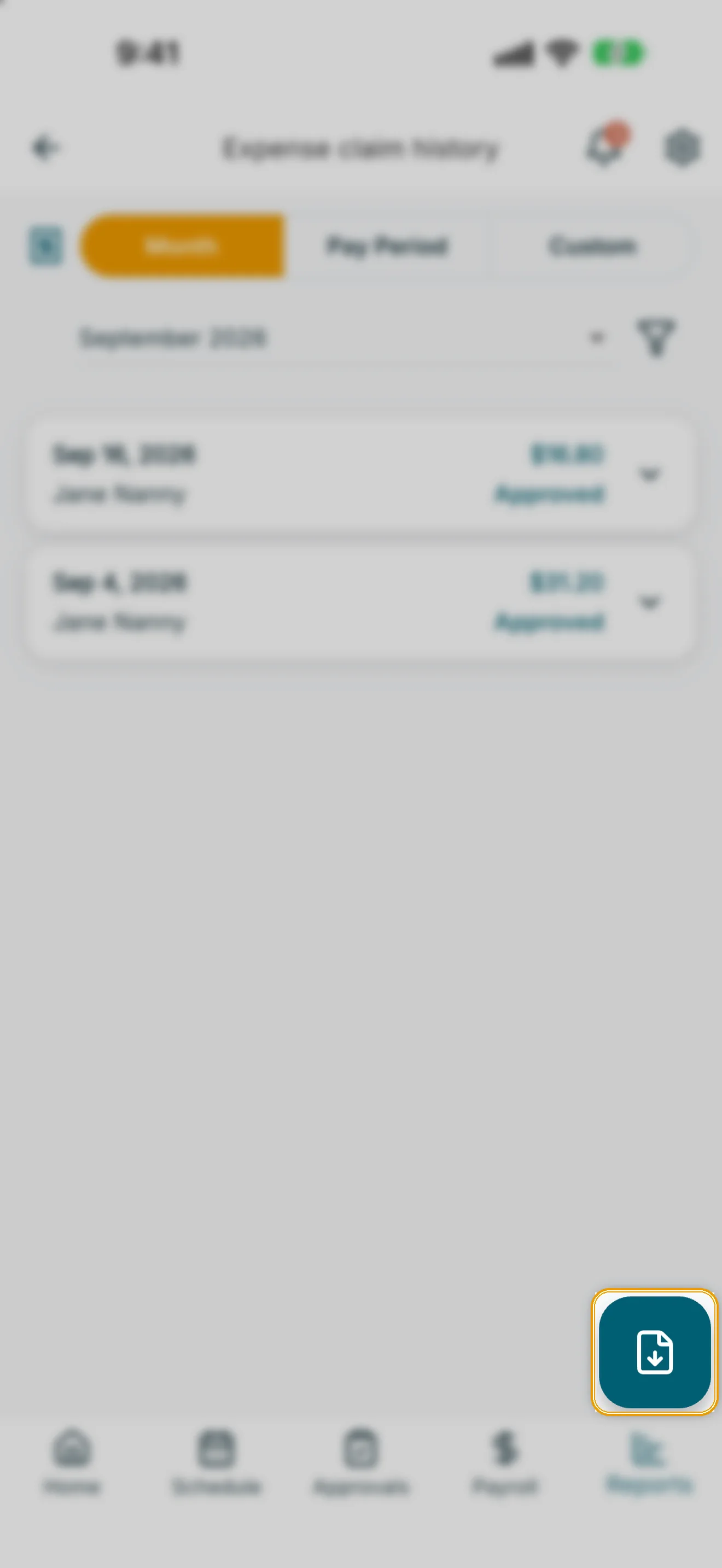
Tap the export button (bottom-right) to build a PDF of the claims currently shown, using the same filters and date range.
- Confirm the export. Optionally turn on Include receipt images in the PDF to attach receipt images as an appendix.
- Choose how to save it: Export & share, Save to device, or Download PDF on web.