
Shift History lists every logged shift for a date range, with its status and pay breakdown, and lets you export the list as a PDF.
1. Open Shift History
From the Reports tab, tap Shift History.
2. Choose a date range
Use the segmented control to pick how you want to filter shifts:
- Month — pick a month from the dropdown.
- Pay Period — pick one of your pay periods from the dropdown.
- Custom — set a From and To date.
3. Filter by status or employee
Tap the filter icon to open Filters. Under Shift status, turn individual statuses on or off (Approved, Paid, Rejected). If you employ more than one caregiver, choose a specific employee under Employee, or leave it on All Employees.
4. Review a shift
Each row shows the date, total hours, and total pay, plus a status chip. Tap a row to expand it and see:
- Clock in and Clock out times
- Hourly Rate
- Regular Hours and any overtime breakdown (Daily OT, Weekly OT, Double OT, Stat OT, Stat Excess)
- Total Pay
Shifts that qualify for a tax deduction (for example child care) show an outlined chip naming the deduction type.
5. Export to PDF
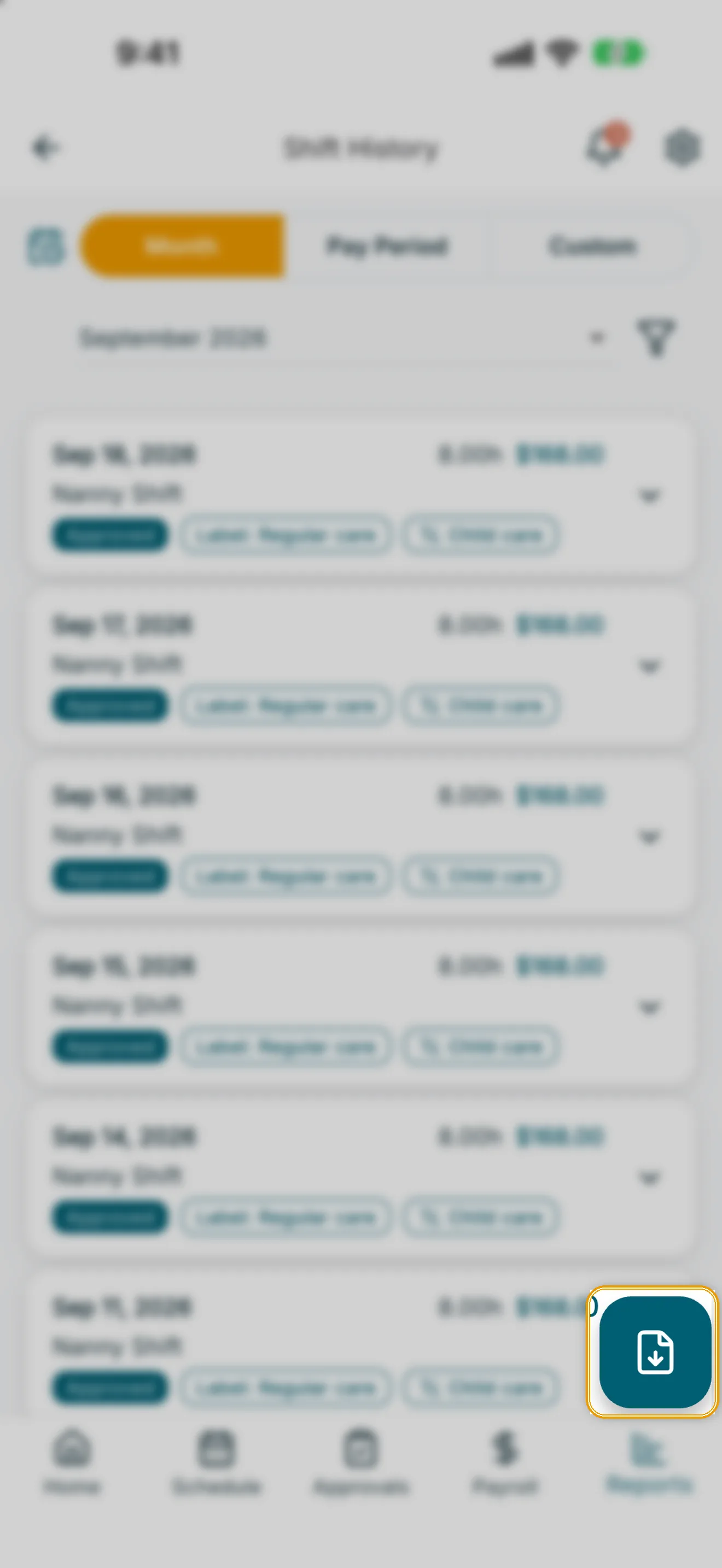
Tap the export button (bottom-right) to build a PDF of the shifts currently shown, using the same filters and date range. Confirm the export, then choose how to save it:
- Export & share — open the system share sheet.
- Save to device — save the PDF directly to your device.
- Download PDF — on web, downloads the file.