
Pay Run History Report lists every submitted pay run, including CPP, EI, and income tax remittances once they’re calculated.
1. Open Pay Run History
From the Reports tab, tap Pay Run History Report. You can also reach this report from Payroll by tapping Past pay runs.
2. Choose a date range
Use the segmented control to filter by All, Year, or Month.
3. Filter by status or employee
Tap the filter icon to open the filters sheet. Under Status, tap the status chips to filter which pay runs are shown, or tap Reset status filters to clear them. If you employ more than one caregiver, choose a specific employee, or leave it on All Employees.
4. Review a pay run
Each row shows the pay period, status, gross pay, and net pay. Tap a row to expand it and see:
- The pay period and payment date
- Earnings breakdown (shifts gross, vacation pay, stat holiday pay, sick pay, expense reimbursement, total gross)
- Deductions (income tax, CPP, EI, CRA remittance) once they’re calculated, and total net pay
Tap Details to open the full pay run detail sheet, or View Paystub to open the PDF once it’s ready.
5. Export to PDF
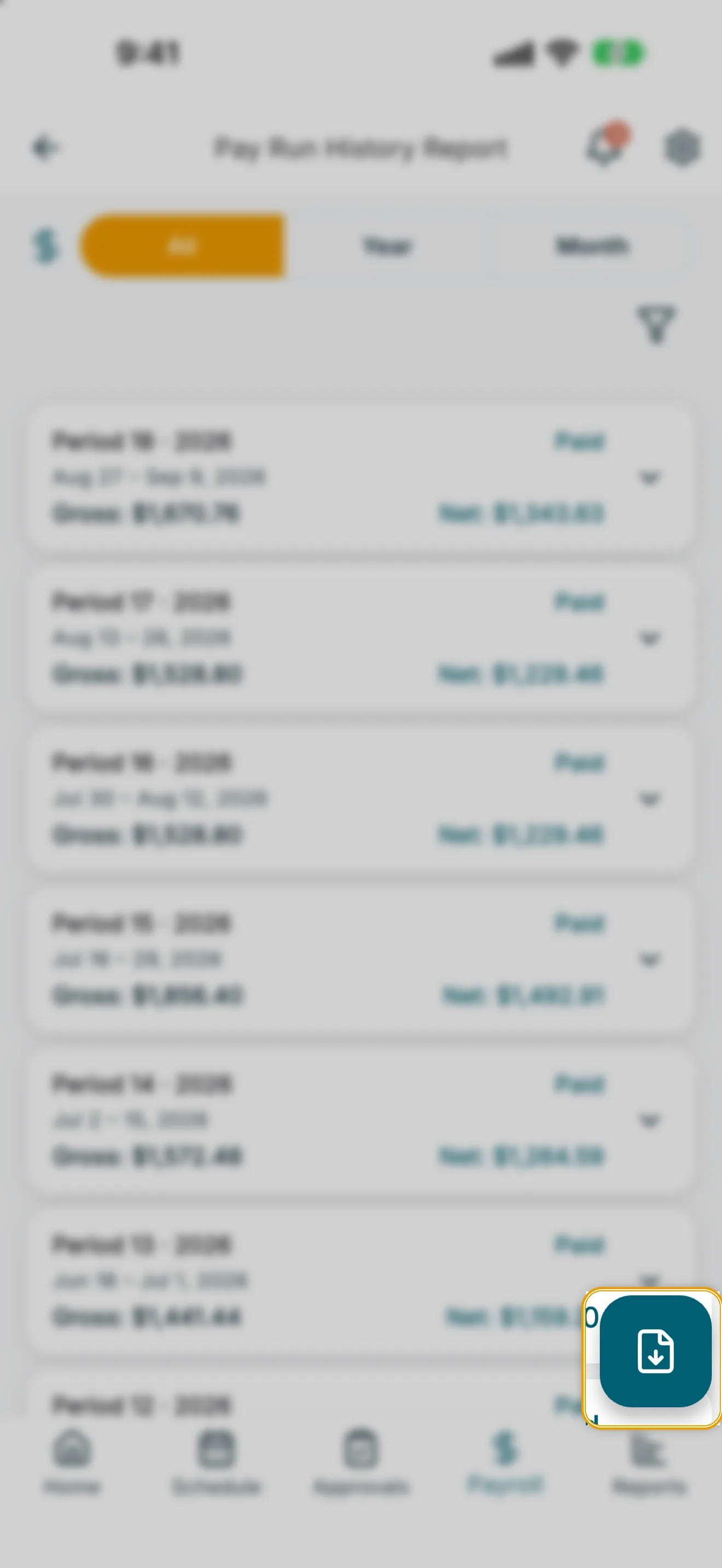
Tap the export button (bottom-right) to build a PDF of the pay runs currently shown, using the same filters and date range. Confirm the export, then choose Export & share, Save to device, or Download PDF on web.