
Vacation, sick day, and time-off cancellation requests from your caregivers show up on the Approvals page for you to approve or deny. Until the contract is signed, the page shows the setup message (No one to pay yet or Almost ready). When the queues are empty, it says You’re all caught up.
1. Open the Time-off Request section
On Approvals, tap the Time-off Request header to expand it. The badge shows how many requests are pending, and the history icon opens the Time-Off History Report.
Each card shows the requested dates, and any note the employee added.
2. Approve or deny a standard request
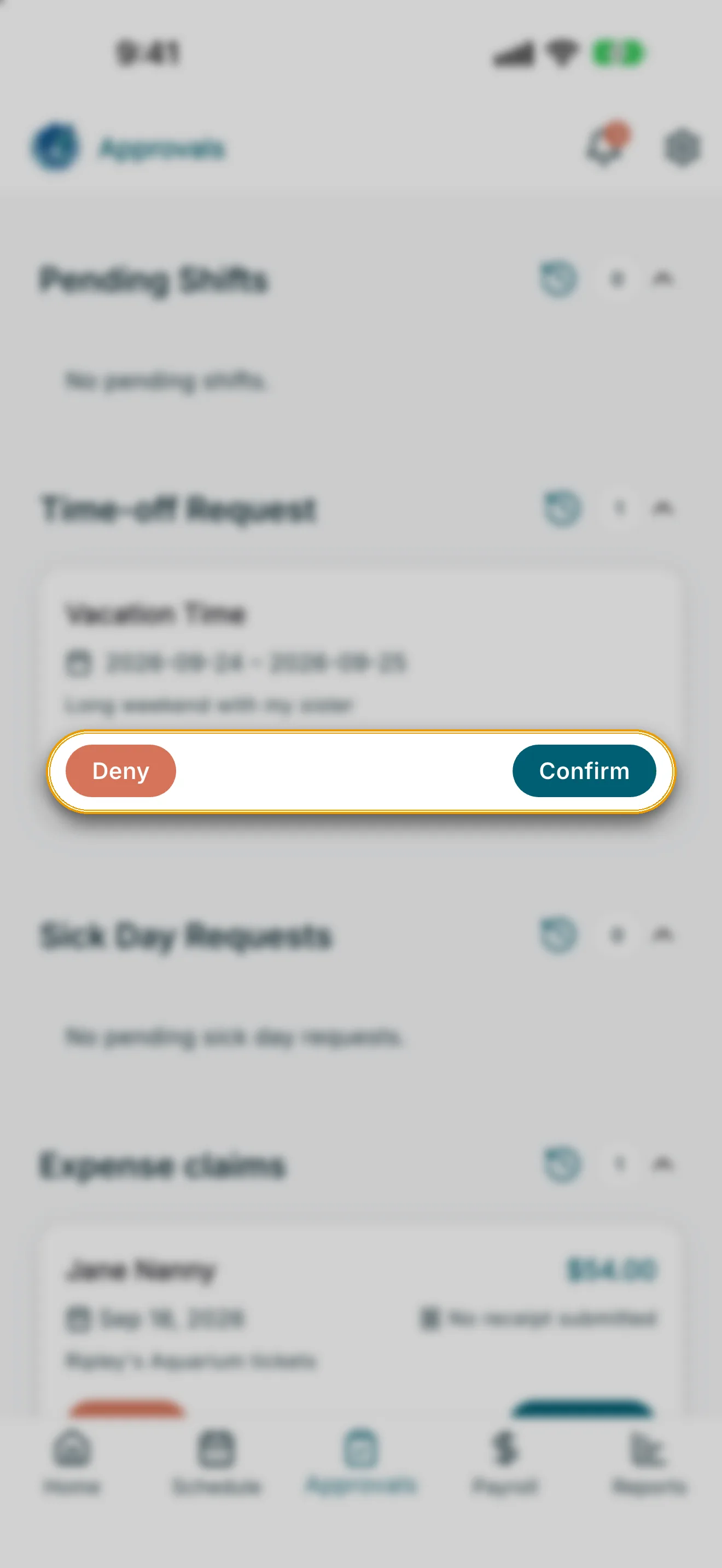
- Tap Confirm to approve — a dialog opens showing a summary of the request; tap Approve to finish.
- Tap Deny to decline — a sheet opens where you must enter a reason, then tap Deny.
3. Handle a vacation cancellation request
If your employee asked to cancel vacation they already had approved, the card is titled Vacation cancellation requested.
- Tap Approve removal to confirm the cancellation — a dialog asks Approve cancelling this vacation?.
- Tap Keep vacation to decline — a dialog explains the approved vacation stays on the calendar and the employee is notified, with no reason required.
4. Handle a vacation amendment request
If your employee asked to change the dates of an already-approved vacation, the card is titled Vacation amendment requested and shows an Amended badge, along with Previously approved and Requested change date ranges.
- Tap Approve amendment to accept the new dates.
- Tap Deny to keep the previously approved dates — this uses the same reason-required deny sheet as a standard request.
5. Approve or deny sick day requests
Sick day requests appear in their own Sick Day Requests section, separate from vacation/time off.
- Each card shows the date, whether it’s a Paid sick day or Unpaid sick day, and (if applicable) the payroll hours that would apply once approved, along with a note about how sick pay is calculated under your province’s rules.
- For a paid sick day, tap Confirm to approve — a confirmation dialog shows the date and pay type; tap Approve to finish.
- For an unpaid sick day, tap Confirm to open a dialog titled Approve unpaid sick day?. Its body explains that any approved shift hours for that date will be removed from payroll when you confirm. If the day already has an approved shift, the dialog also shows that shift’s approved window (start and end time, or total hours). Tap Approve & remove hours to finish.
- Tap Deny to decline either type — enter a reason in the sheet, then tap Deny.
Edge cases
- No pending sick day requests / no pending time-off requests: shown when a section is empty.
- We couldn’t load time-off requests: check your connection and pull to refresh.
- We couldn’t update that time-off request: try again if approving or denying fails — the request stays pending.
- Dates unavailable: shown if a request’s dates can’t be read; you can still open the summary to review before deciding.