
Use expense claims to get reimbursed for work-related purchases, like supplies you bought for the family you work for.
Submitting a new claim
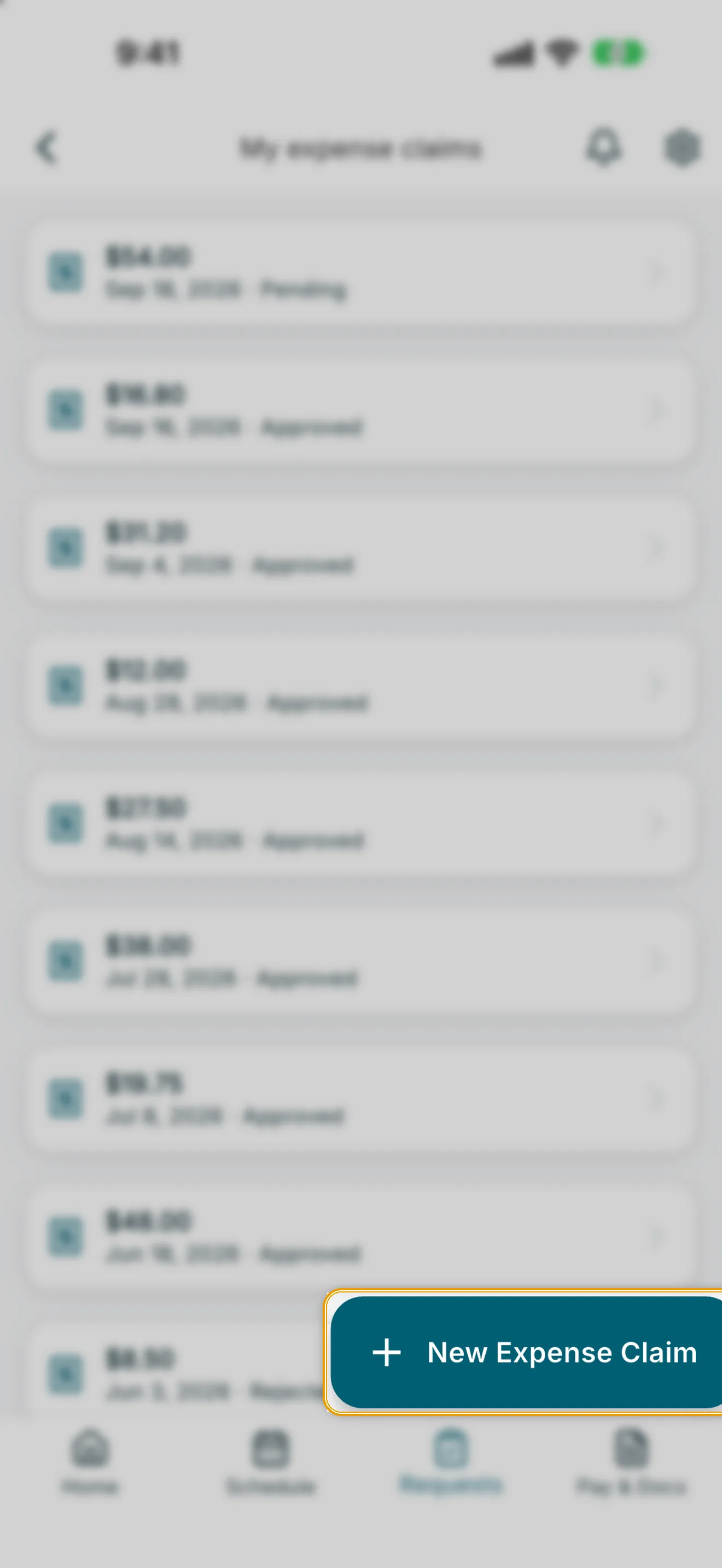
- From the Home screen, tap Submit Expense Claim under QUICK ACTIONS. You can also open Requests, tap My expense claims, then tap New Expense Claim.
- In the New Expense Claim sheet, add a receipt photo by tapping Take photo or Choose from gallery. RoostPay scans the receipt to help fill in the details automatically.
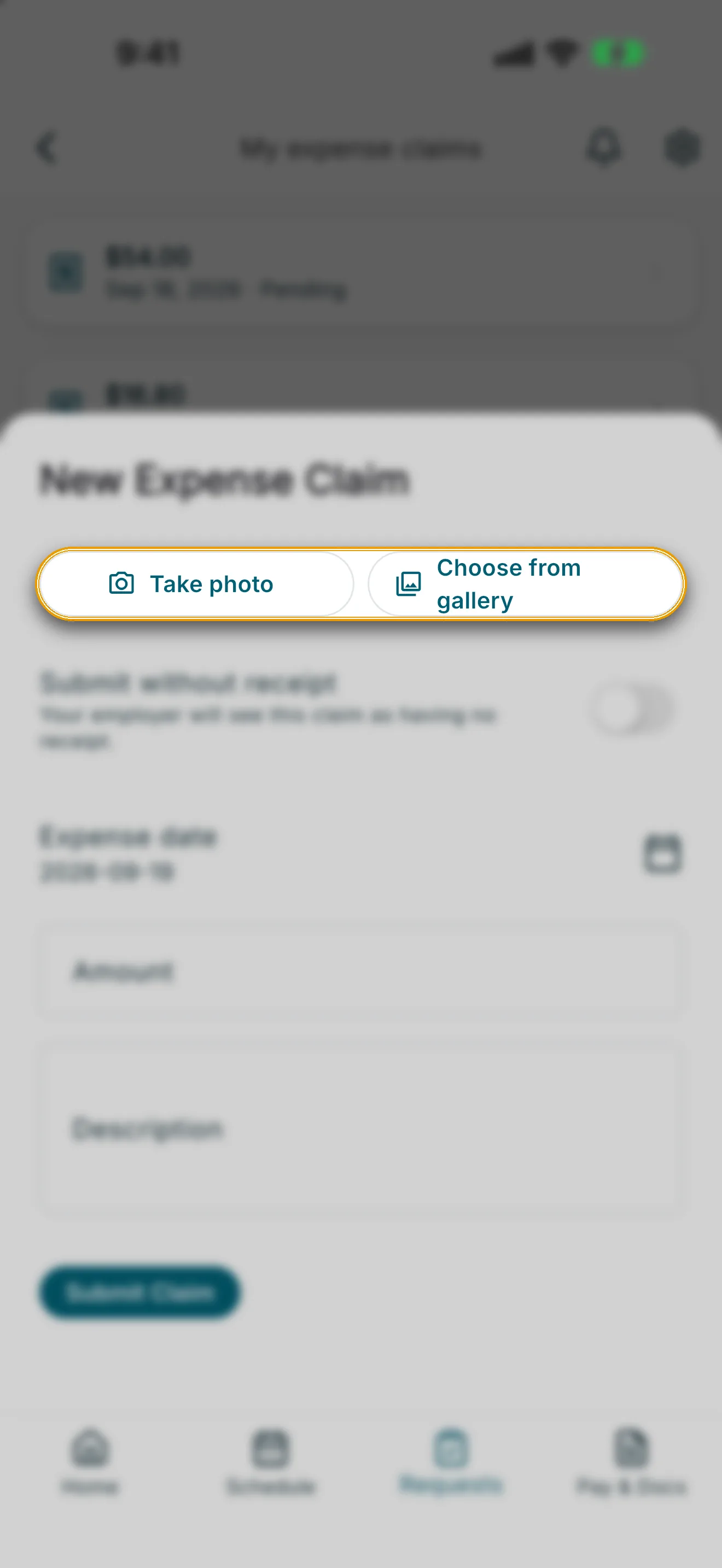
- If you don’t have a receipt, tap Submit without receipt — your employer will see this claim as having no receipt.
- Confirm or adjust the Expense date, Amount, and Description.
- Tap Submit Claim.
Note: If RoostPay spots a similar claim already on file for that amount and date, it will ask if you want to submit anyway before continuing.
Reviewing or editing a claim
- Open Requests from the navigation bar, then tap My expense claims.
- Each claim shows its status: Pending, Approved, or Rejected.
- Tap a claim to open it. If it’s still pending, you can update the details and tap Save changes, or tap Delete to remove it.
If you have no claims yet, you’ll see “You have no expense claims yet.”