
Use the shift card on your Home screen to clock in when you start work and clock out when you finish.
Note: Clock-in and clock-out times shown here always reflect your employer's registered work time zone — not your device's local time.
Clocking in
- On the Home screen, under Your shift or Your next shift, tap Clock In.
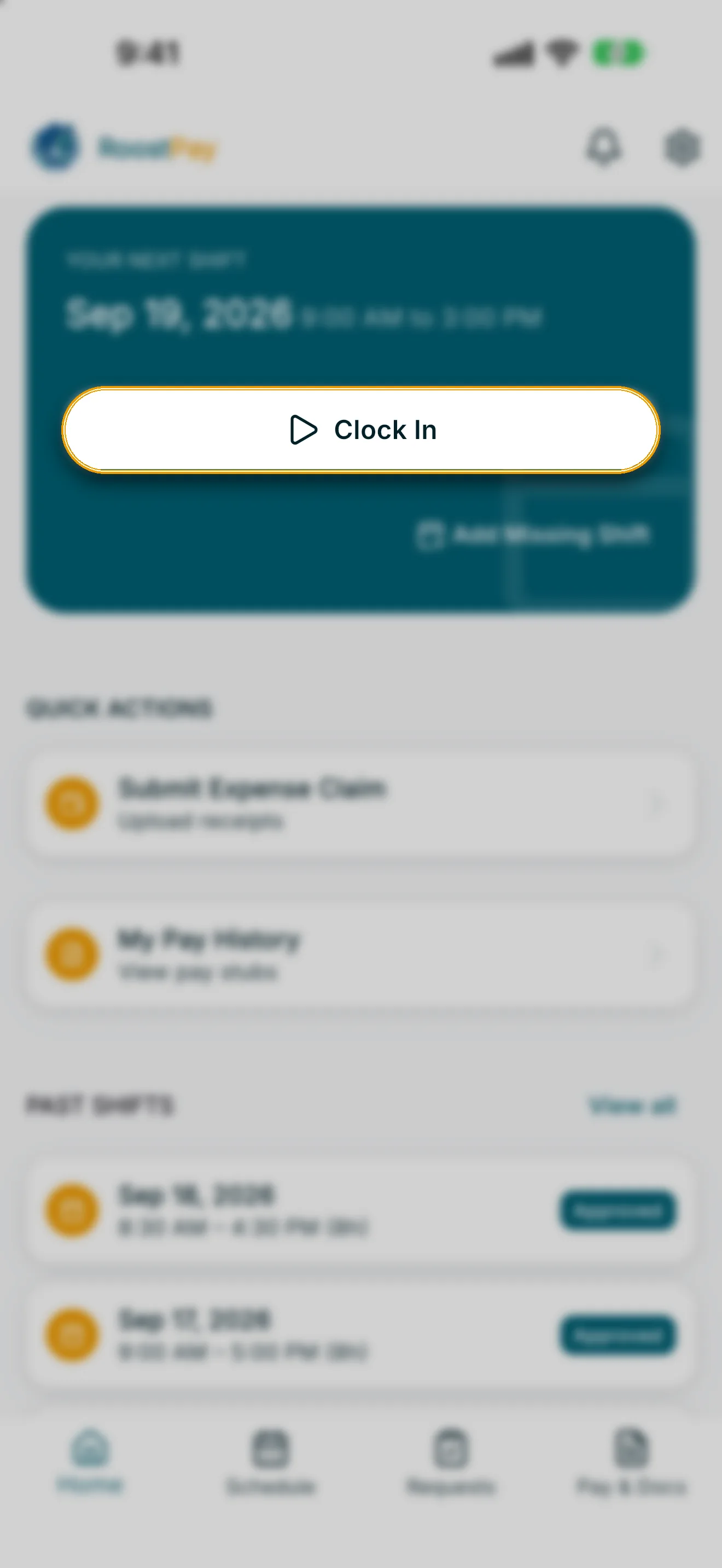
- If you’re clocking in outside your scheduled shift window, RoostPay shows an Unscheduled shift message explaining that you’re clocking into a shift that hasn’t been scheduled. Tap Continue to start your shift anyway, or Cancel if you didn’t mean to.
- If you work more than one job, you may be asked to choose which household or job you’re clocking in for.
Once you’re clocked in, the card shows Working since [time].
Clocking out
- Tap Clock Out.
- If your shift was on the schedule, you’ll see Clock out of this scheduled shift? — confirming you’re sure your work time is really over.
- If your shift wasn’t scheduled, you’ll see Clock out now? asking if you’re ready to end your shift.
- Tap Clock out to confirm.
Note: If you clocked in by mistake, tap Cancel next to your active shift, then confirm Cancel clock in. This removes the clock-in entirely — you can clock in again when you're ready.
Once you clock out, your shift moves into PAST SHIFTS on the Home screen, where you can review the time worked and its status.