
The Payroll tab is where you review hours and pay for the current pay period, then submit payroll once the period ends. This article covers the payroll hub, setting up your first pay run, and reviewing and submitting a pay run.
Standard pay periods follow the frequency on the payroll agreement:
- Weekly — 7-day periods on a fixed weekday grid.
- Bi-weekly — 14-day periods on a fixed weekday grid.
- Semi-monthly — twice per month on day-of-month anchors.
A short transitional (“stub”) period can appear when you set the next weekly or bi-weekly period start to a day other than the next regular start after submitted runs. Overtime still uses the ESA calendar week (Sunday–Saturday), independent of pay-period length.
1. Open the Payroll tab
Tap Payroll in the navigation. Until the contract is signed, Payroll shows No one to pay yet, or Almost ready while you wait for your caregiver to sign. After that, if you employ more than one caregiver, use the employee chips at the top to switch between them — everything below the chips updates for the selected employee.
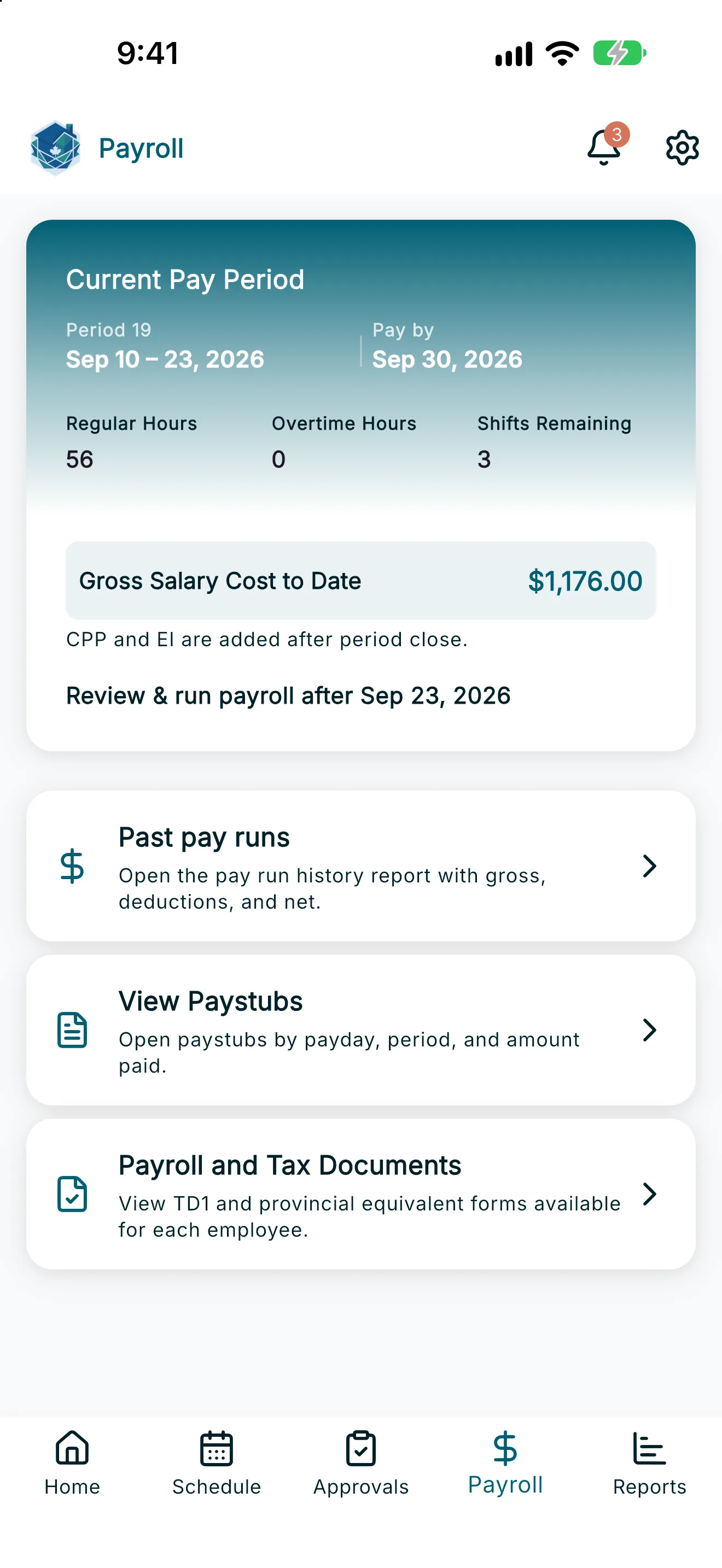
2. Check the current pay period card
The top card shows the pay period you’re currently in, along with:
- Regular Hours and Overtime Hours worked so far
- Shifts Remaining in the period
- Gross Salary Cost to Date (or Estimated Gross Salary Cost before the period ends)
3. Set up your first pay run
The first time you run payroll for an employee, RoostPay asks you to confirm the pay period before generating a draft:
- Choose Standard period to use the default period calculated from your pay schedule, or turn on Custom / transitional period to run a short, one-time period that lines up your employee with your new pay schedule.
- If you choose the custom option, set Period start and Period end, then tap Generate draft. Otherwise, tap Use standard period.
4. Review and run payroll
Once a pay period ends, a Review & Run Payroll button appears on the current period card.
- Tap Review & Run Payroll to open the review screen. If the period still has unapproved shifts, expenses, or time-off/sick-day requests, RoostPay pauses first and asks you to review them or auto-approve them for this period — see Auto-Approving Pending Items Before Payroll.
- Check the breakdown: Shifts gross, Vacation pay, Stat holiday pay, Sick pay, and Expense reimbursement, rolling up to Total gross. Stat holiday pay follows the statutory holiday choice on the contract (holiday pay plus 1.5×, a substitute day plus 1.5×, or holiday pay plus 2×). If hours averaging is on, overtime inside an open averaging window stays in regular hours until that window closes; the closed window is then settled on this pay run, including a true-up for hours already paid as regular. The same hours are not paid twice. If your employee is a live-in caregiver with room and/or board deductions on file, you’ll also see a Room & board taxable benefit line included in the calculation.
- Tap Confirm & Run Payroll. You’ll be asked to verify your identity (Face ID, fingerprint, device PIN, or password) before the pay run is finalized.
- Once submitted, RoostPay calculates and finalizes the pay run immediately — there’s no processing wait or admin review queue. The pay period card shows Payroll Finalized — Pay Outside RoostPay, and the paystub is generated right away. Pay your caregiver and remit CRA amounts outside RoostPay, then tap Mark as paid once you have.
5. Recalculate a draft before submitting
If hours change after a draft is generated but before you submit, tap Recalculate on the current period card to refresh the numbers before you review and run payroll.
6. Find past pay runs and related documents
- Tap Past pay runs to expand a list of previously submitted pay runs for the selected employee. Tap Details on any row to see the full breakdown, or View Paystub to open the PDF.
- Tap Payroll and Tax Documents to view TD1 forms on file for your employees — see Payroll and Tax Documents. For T4 slips and the T4 summary, go to Reports → Year-end taxes (T4) — see Year-End Taxes (T4).
- Tap View Paystubs to browse all paystubs by payday — see Viewing Paystubs.
If a pay period has unapproved shifts, expenses, or time off when you calculate or review it, RoostPay will offer to auto-approve those items for you — see Auto-Approving Pending Items Before Payroll. Hours averaging is covered in Hours Averaging.