
Use View Paystubs to browse every paystub RoostPay has generated for your employees, sorted by payday.
1. Open View Paystubs
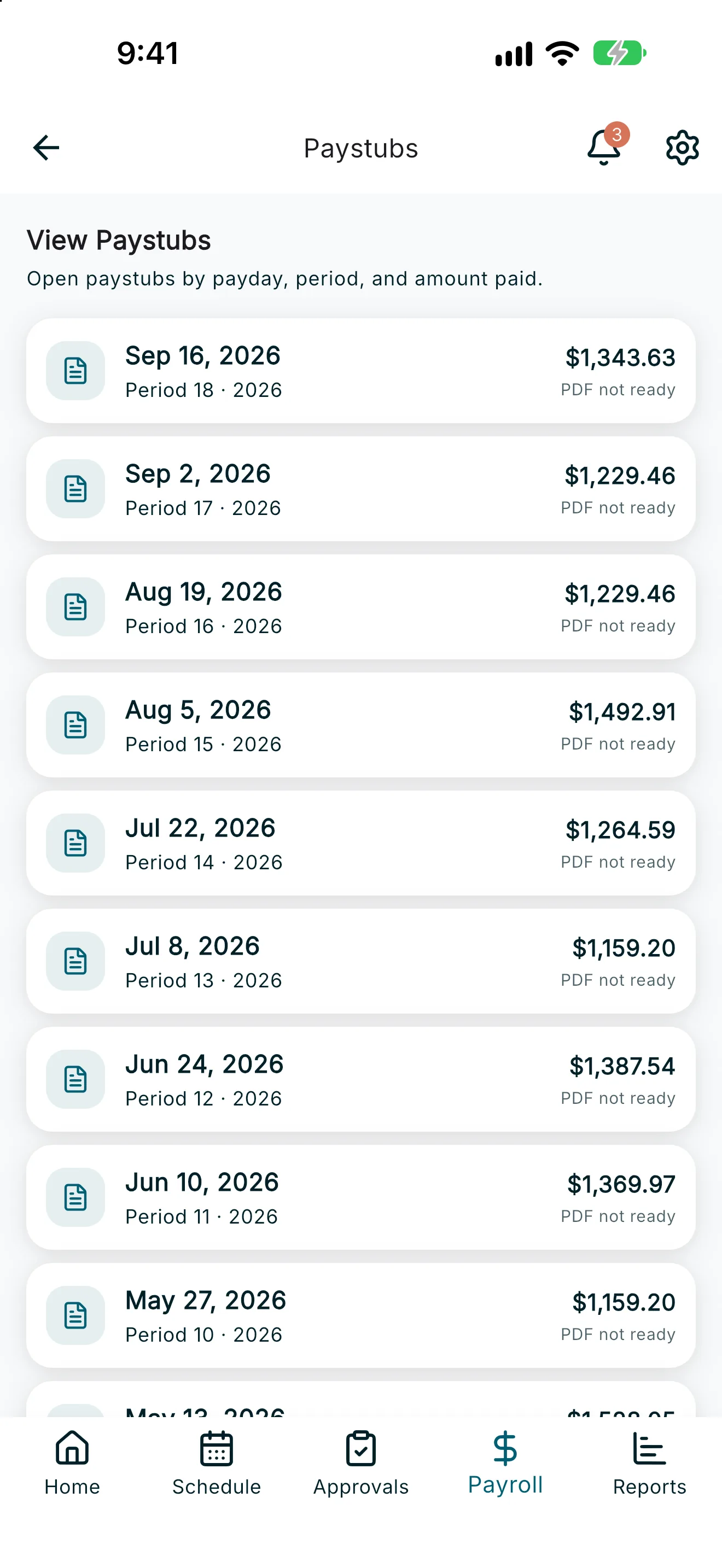
From the Payroll tab, tap View Paystubs. This opens a screen titled Paystubs.
2. Filter by employee
If you employ more than one caregiver, use the employee filter chips near the top to show paystubs for one employee, or leave it on all employees.
3. Browse and open a paystub
Each row shows the payday, the pay period, and the amount paid. Tap a row to open the paystub PDF.
- If the PDF is ready, the row shows View Paystub — tap it (or the row itself) to open the document in your browser or PDF viewer.
- If the PDF hasn’t finished processing yet, the row shows PDF not ready instead. Check back after payroll processing completes.
4. No paystubs yet
If no paystubs are available for the selected employee, you’ll see a message letting you know there aren’t any pay runs to show. Paystubs appear here once a pay run has been submitted — see Running Payroll. The PDF includes that run’s statutory holiday pay (from the contract choice) and any overtime settled when an hours-averaging window closed.