
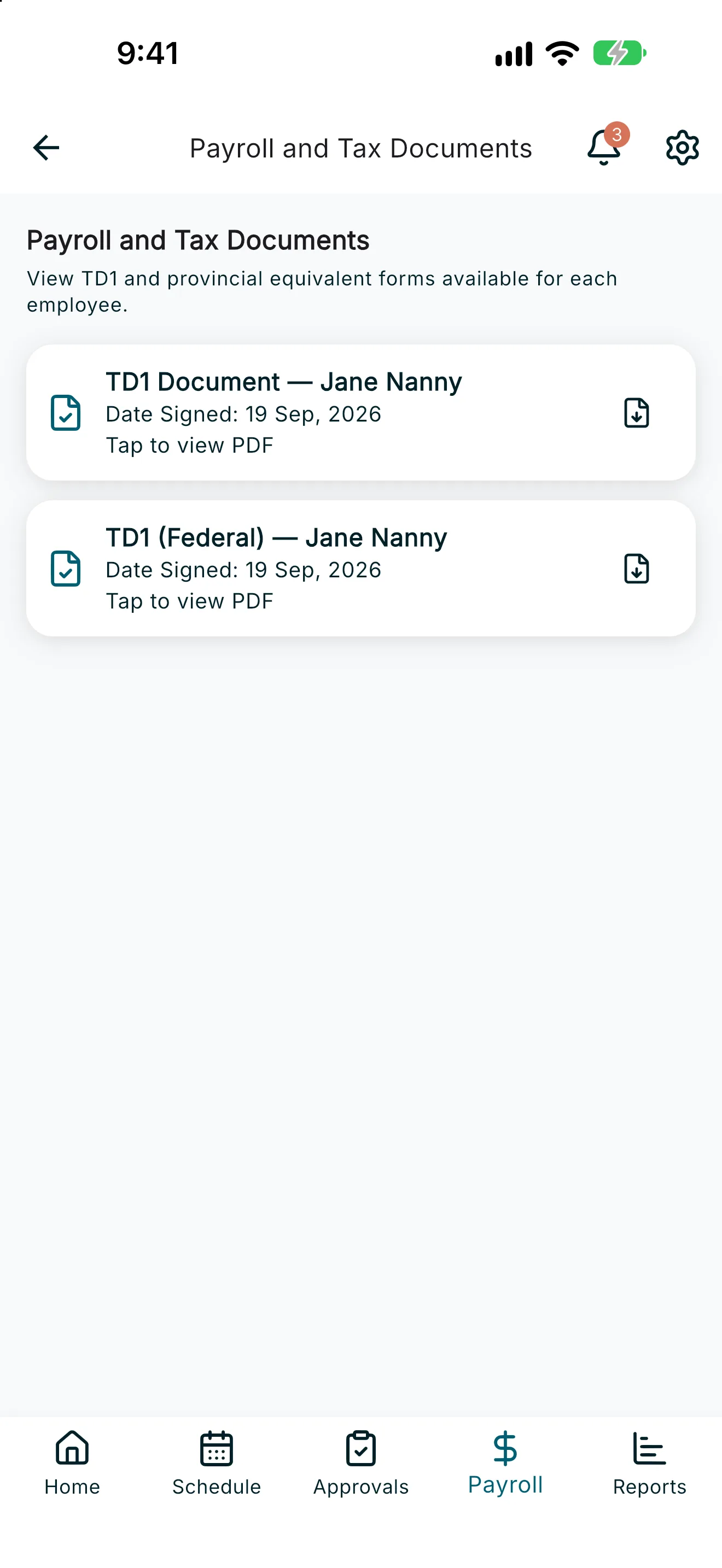
The Payroll and Tax Documents screen shows the federal TD1 and provincial equivalent forms your employees have on file, so you can confirm the right amounts are being withheld from their pay.
1. Open Payroll and Tax Documents
From the Payroll tab, tap Payroll and Tax Documents. This opens a screen with the same title, showing TD1 and provincial equivalent forms available for each employee.
2. Filter by employee
If you employ more than one caregiver, use the employee filter chips to narrow the list to one employee.
3. View a document
Tap any document row to open it in a PDF viewer. Each row shows the form label and the date it was signed.
4. Download a document
Tap the download icon on a row (or Download PDF inside the viewer) to save a copy.
5. No documents yet
If an employee hasn’t completed their TD1 forms yet, you’ll see a message that no payroll tax documents are available. Once your employee completes their TD1 in RoostPay, their forms will appear here automatically.