
Your employer invited you to RoostPay by email. This guide walks you through entering your email, verifying an 8-digit code sent to your inbox, and creating a password so you can sign in going forward.
Note: There's no separate invite-code field — you only need your email address and the 8-digit code RoostPay emails you.
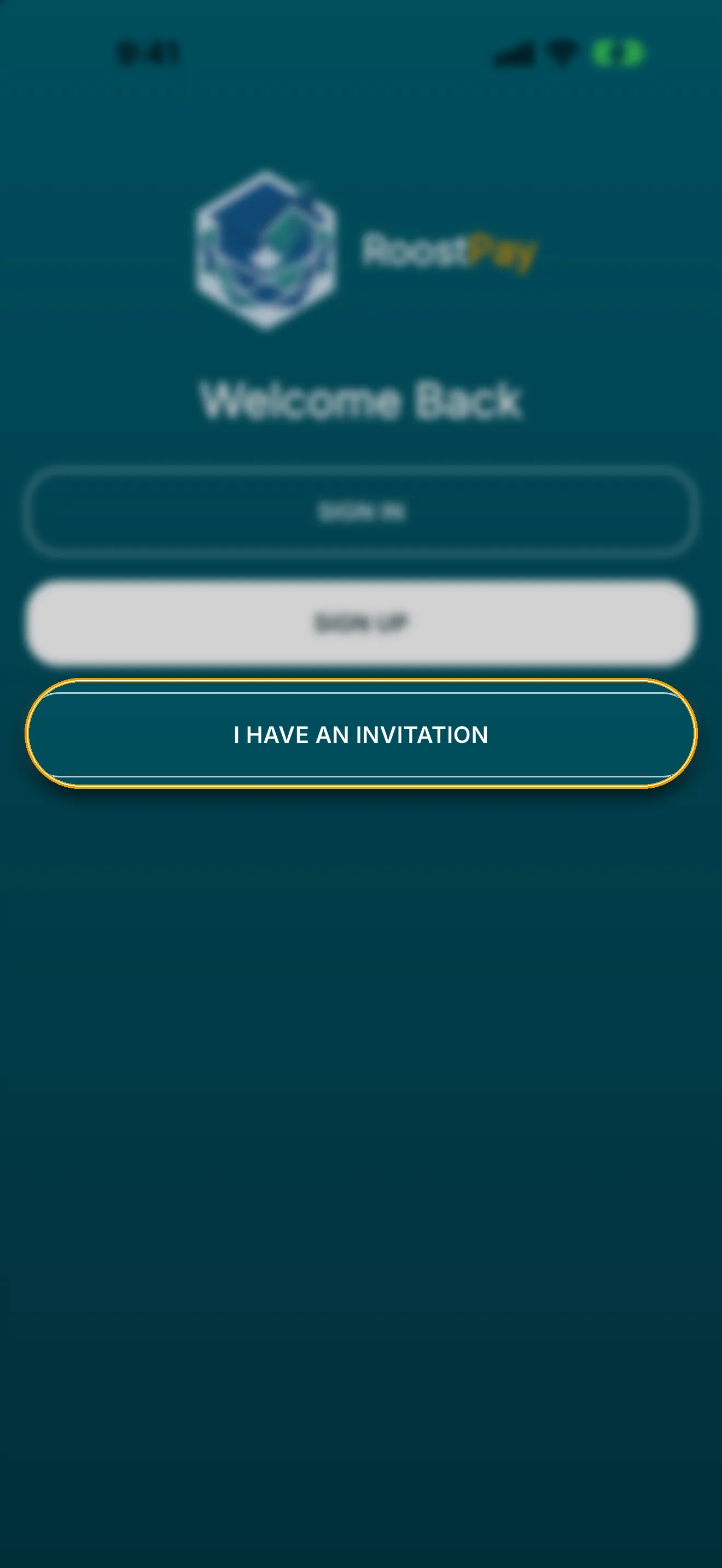
- Open app.roostpay.ca in Safari (iPhone/iPad) or Chrome (Android), add RoostPay to your Home Screen, then open it and choose I have an invitation from the welcome screen.
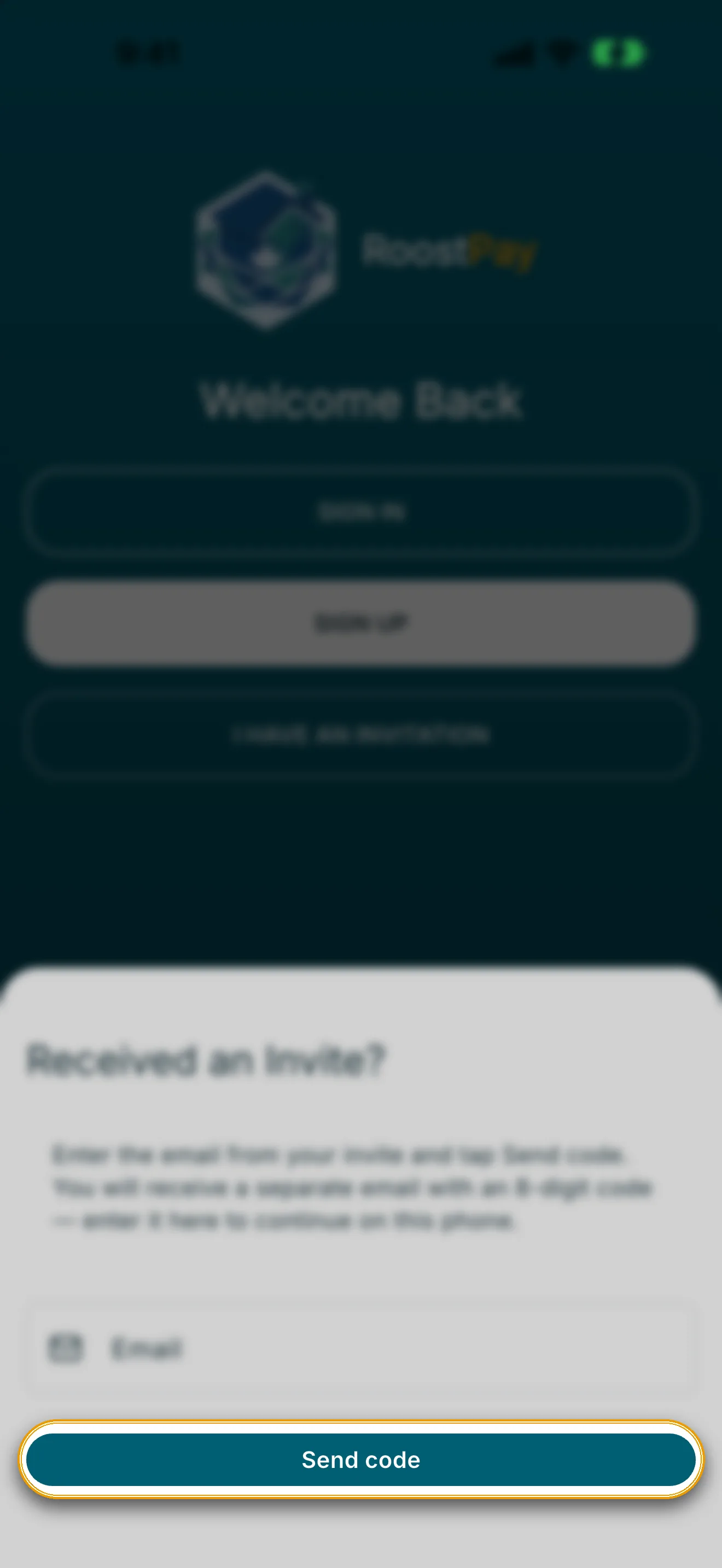
- On the Join RoostPay screen, enter your Email address — use the same email your employer invited you with.
- Tap Send code. RoostPay emails you a separate 8-digit sign-in code.
- Check your inbox for an email from RoostPay with an 8-digit code (subject like “12345678 is your RoostPay sign-in code”).
- Enter the code in the 8-digit code field, then tap Continue.
Note: Didn't get a code? Tap Resend code to have RoostPay send a new one.
- Create a password for your account. Enter it in Password, then enter it again in Confirm password.
- Tap Save password and continue.
Note: You'll use this email and password to sign in from now on, so choose a password you'll remember.
Once your password is saved, RoostPay takes you straight into the employee setup steps so you can finish creating your profile.