
Use this guide to sign in to RoostPay, and to reset your password if you forget it.
Signing in
- Open RoostPay and, on the Welcome Back screen, tap Sign in.
- On the Sign in to RoostPay screen, enter your Email and Password.
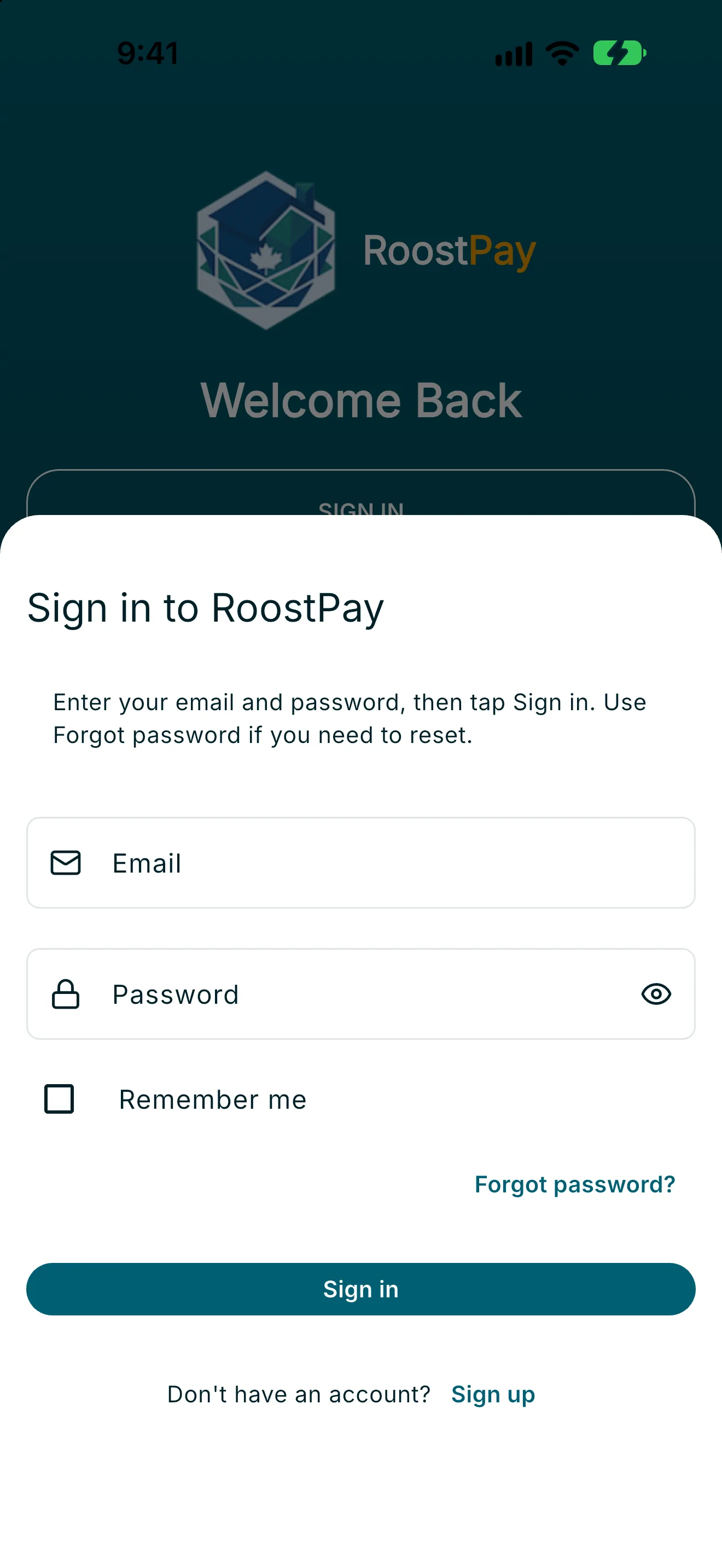
- Optionally, turn on Remember me to stay signed in on this device.
- Tap Sign in.
Note: If your device supports it, you can also tap Sign in with Passkey to sign in with Face ID, your fingerprint, or your device lock instead of typing a password.
If you see a message that no account was found, double-check the email from your invite. If your account is missing your name, contact your employer. If your account has been suspended, contact RoostPay support.
Resetting your password
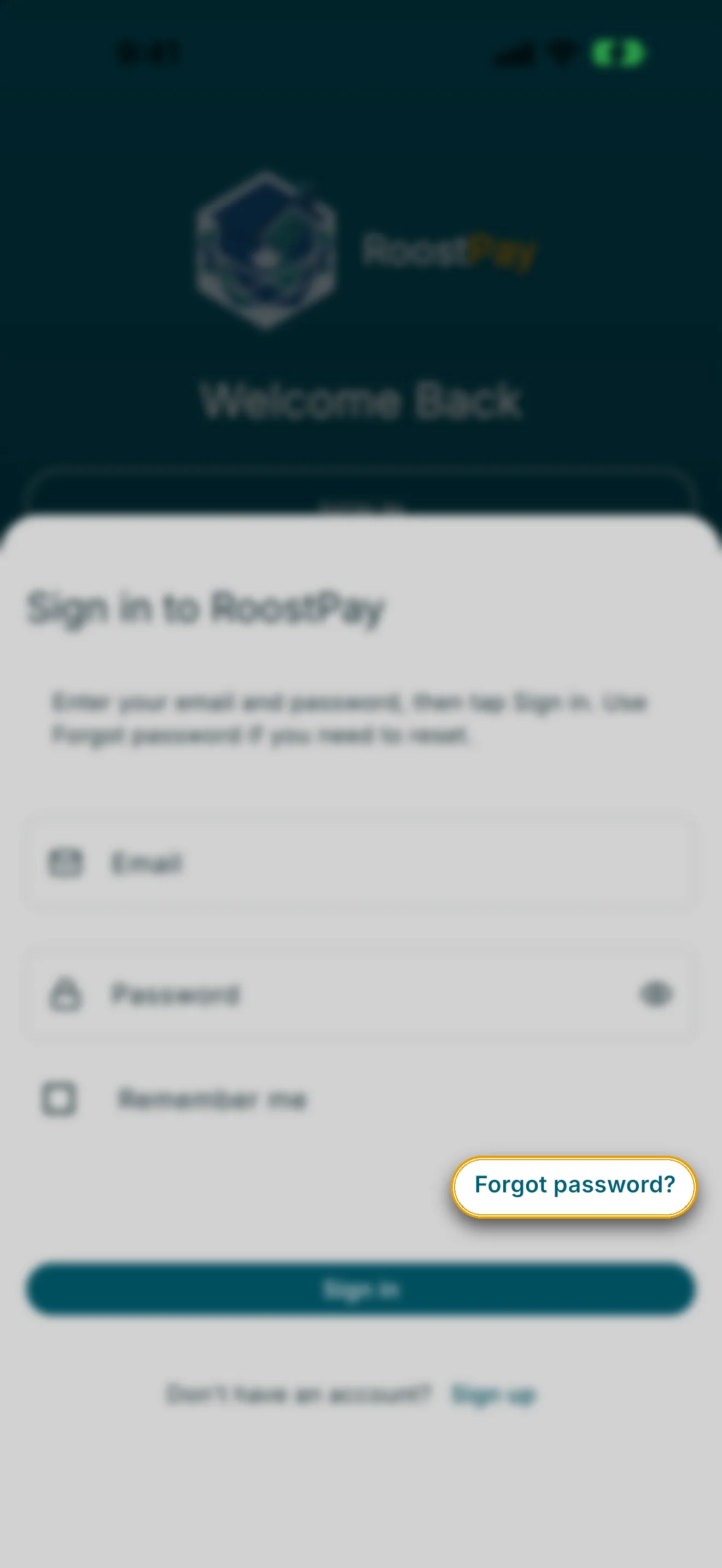
- On the sign-in screen, tap Forgot password?.
- On the Reset password screen, enter your Email.
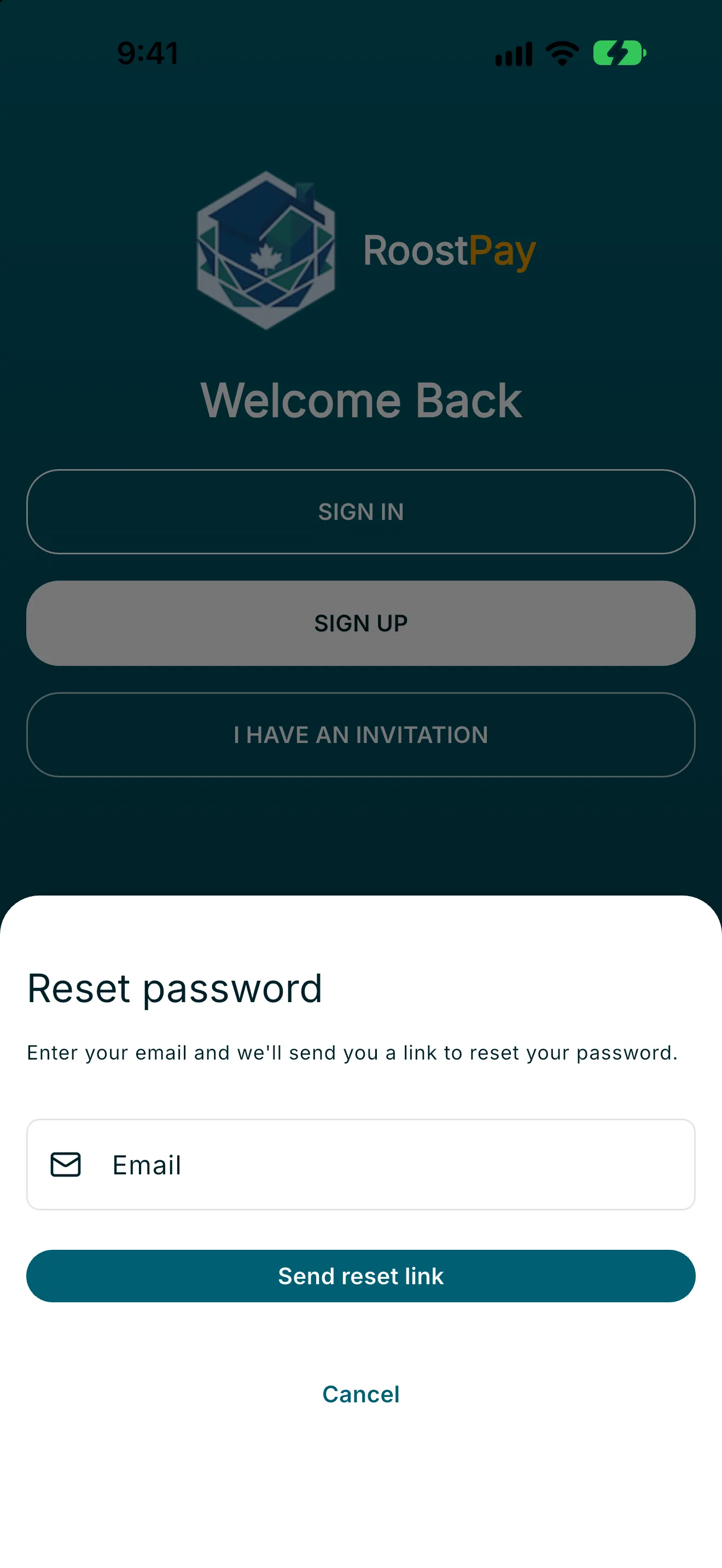
- Tap Send reset link.
- Check your email for the reset link message (“Check your email for the reset link.”).
- Open the link, enter a New password, then enter it again in Confirm password.
- Tap Update password.
Note: Your password needs a minimum of 8 characters (maximum 72), with at least one letter and one number. Spaces and special characters are allowed.
Once your password is updated, sign in again with your new password.