
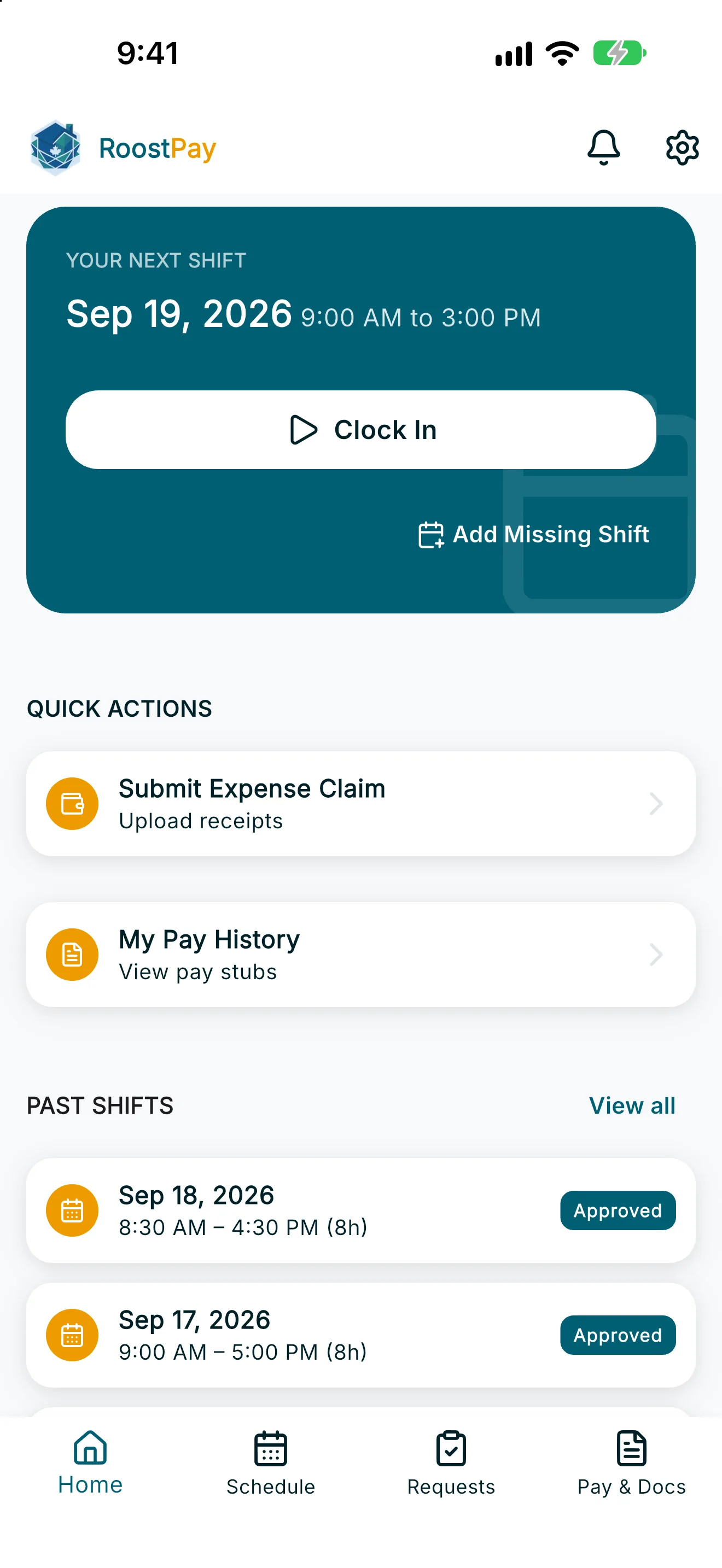
Home is the first screen you see when you sign in. It shows what needs your attention, your current or next shift, quick shortcuts, and your recent shift history.
- URGENT ACTIONS appears at the top when something needs your attention, such as Review & sign contract, Complete your TD1 Tax Form, or Update work authorization. Tap Review, Complete, or Update on any card to handle it right away.
- Once you’ve signed your contract, your current or next shift appears under Your shift or Your next shift. From here you can:
- Tap Clock In to start your shift, or Clock Out to end it — see Clocking in and out.
- Tap Correct Clock-In Time or Correct Shift Times if you need to fix a punch — see Correcting clock times and adding a missing shift.
- Tap Add Missing Shift if you forgot to clock in altogether — see Correcting clock times and adding a missing shift.
- Under QUICK ACTIONS, tap Submit Expense Claim to upload receipts (see Submitting an expense claim), or My Pay History to view pay stubs (see Finding your pay stubs, contracts, and tax documents).
- Scroll down to PAST SHIFTS to see your completed shifts, including the date, hours worked, and status (Pending, Approved, or Paid).
Note: If a past shift shows a Correct Shift Times link, you can still fix the clock-in or clock-out time for a short window after the shift ends.
Pull down on the screen at any time to refresh your shift and action information.
On a phone, open the header menu and tap Help. On a wider screen, use the help icon. Help & support opens caregiver docs, employer docs, and contact.