
The Schedule screen is your household calendar. It shows work shifts, statutory holidays, approved time off, and general events for your caregivers, and it’s where you add new shifts and events.
1. Open the schedule
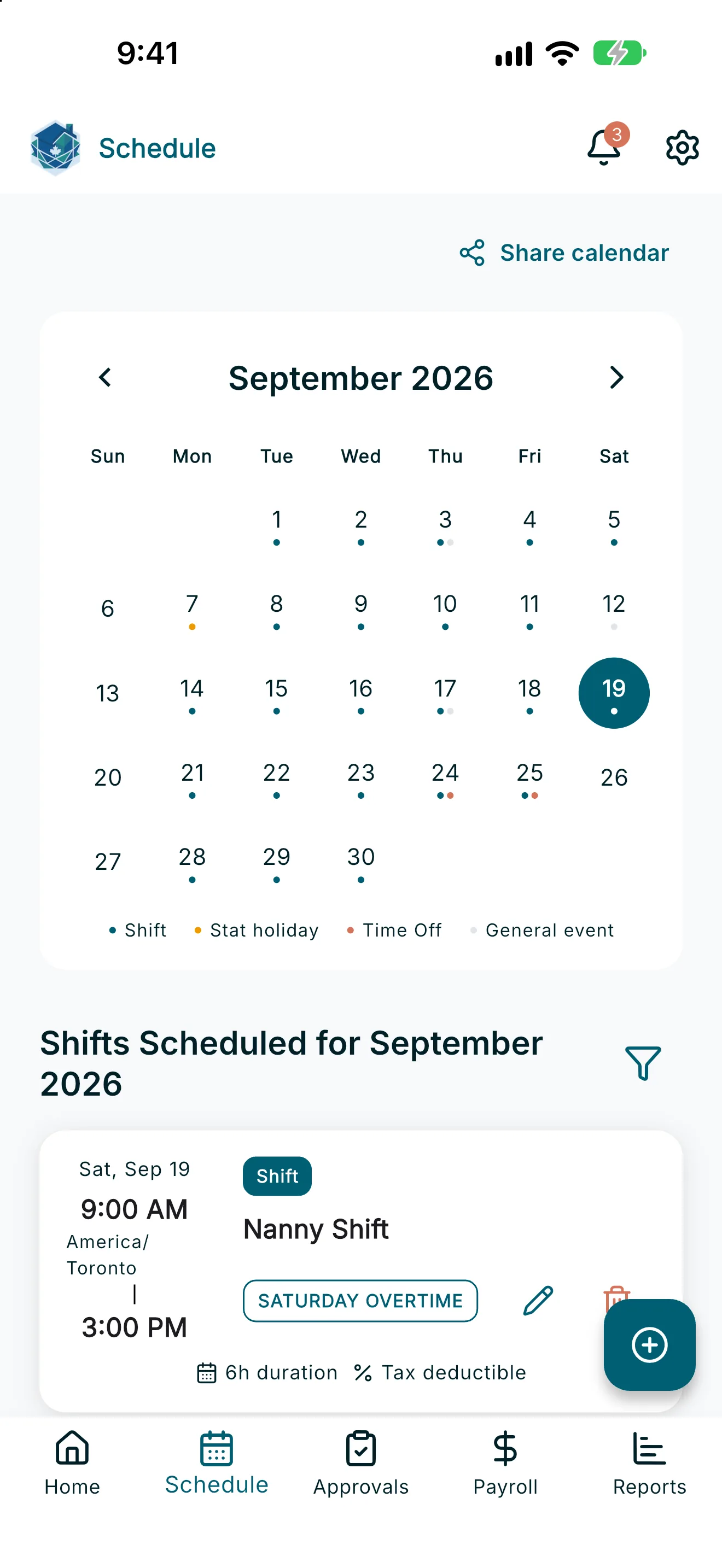
Go to Schedule from the main navigation. On a phone, you’ll see a monthly calendar grid above a scrollable agenda list. On a wider screen (tablet or web), the calendar view takes up most of the page with the agenda list below it.
2. Filter by employee
If your household has more than one active employee, filter chips appear above the calendar so you can switch between All and each individual employee.
3. Switch calendar views (web/wide screens)
On wider screens, use the view toggle to switch between Month, Week, and Schedule (agenda) views of the calendar.
4. See what’s on a day
- Tap any date on the calendar to open a day summary showing every shift, holiday, time off, and event on that day, listed in time order.
- Tap + in the day summary to add a new shift or event for that date.
- Tap any entry in the day summary, or directly on the calendar, to open its full details.
5. Read the calendar legend
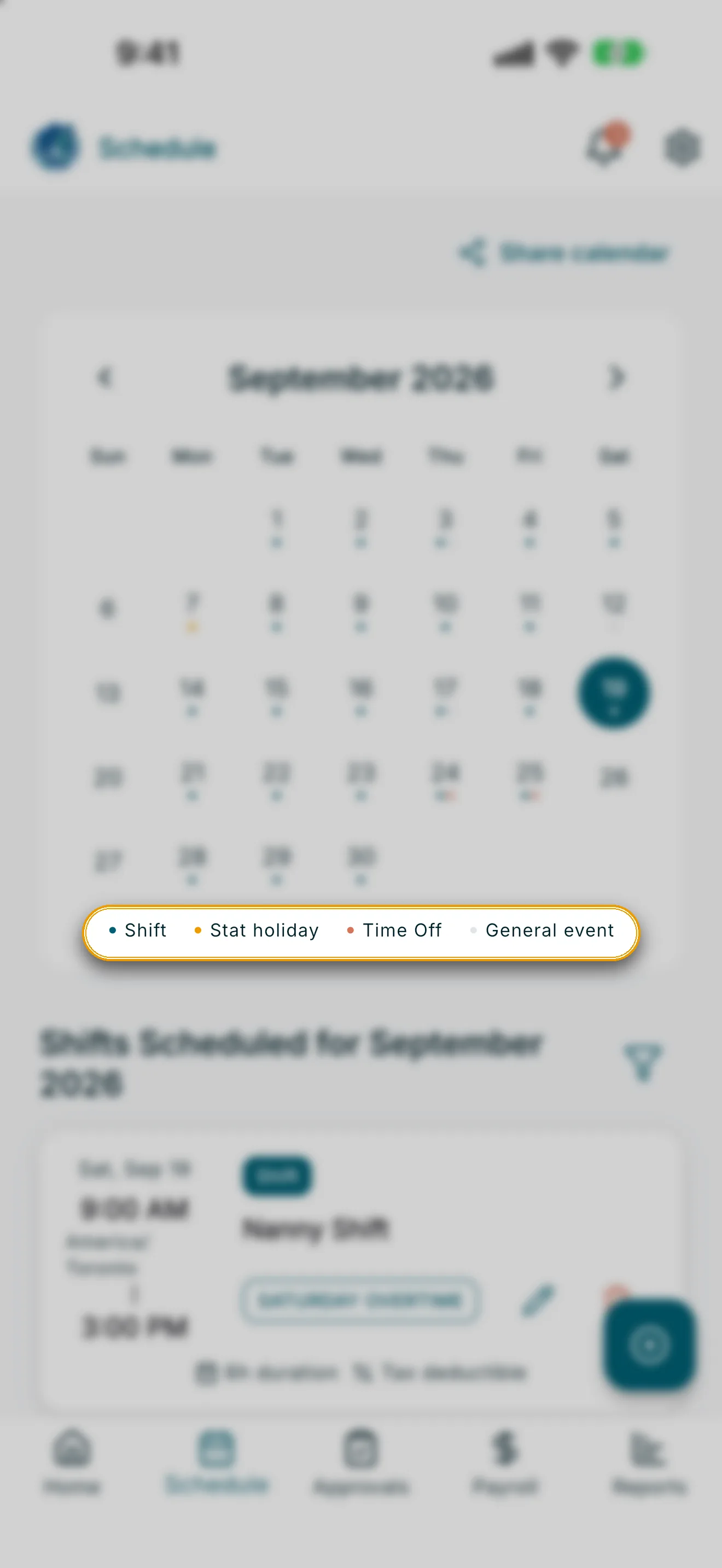
Colored dots on the calendar match this legend:
- Shift — a scheduled work shift.
- Stat holiday — a statutory holiday.
- Time Off — approved or pending vacation/sick time.
- General event — a non-work event (appointments, reminders, etc.).
6. Browse the agenda list
Below the calendar, the agenda list shows everything scheduled for the month, starting from today. Tap Show More Shifts to load more, or use the filter icon in the section header to show only certain types of entries (see Schedule Events, Stat Holidays, and Time Off for details).
7. Add a shift or event
Tap the + button (floating action button on mobile, or the + in a day’s summary) and choose whether you are adding a Scheduled shift or event or a Worked shift (actual hours). On a wider screen, Add worked shift and the add button sit in the top bar. If nothing is coming up, the agenda shows Add shift. See Adding, Editing, and Deleting Shifts for the full walkthrough.
Edge cases
- No other shifts scheduled for today: shown in the day summary when nothing else is on the calendar that day.
- Could not load schedule: shown if the schedule fails to load — check your connection or try again; pulling down refreshes the page.
- Before the contract is signed: Schedule shows No one to pay yet, or Almost ready while you wait for your caregiver to sign, instead of the calendar.
- No events match the selected filters: shown in the agenda list if your event-type filter hides everything currently scheduled.