
Besides work shifts, your household schedule shows statutory holidays, approved and pending time off, and general events (appointments, reminders, and anything else worth putting on the calendar).
1. Statutory holidays
Statutory holidays are added automatically based on your employee’s province and appear on the calendar with a Stat holiday chip. They’re read-only — you can’t add, edit, or delete them from the schedule.
2. Time off (vacation and sick days)
Vacation and sick day entries appear on the calendar as Time Off, labelled Approved or Pending. These come from your employee’s time-off requests, and their status is managed from the Approvals page (see Approving Time Off Requests), not from the schedule itself.
3. General events
General events are anything else you want on the household calendar — appointments, reminders, or shared notes — and unlike shifts, they aren’t tied to payroll.
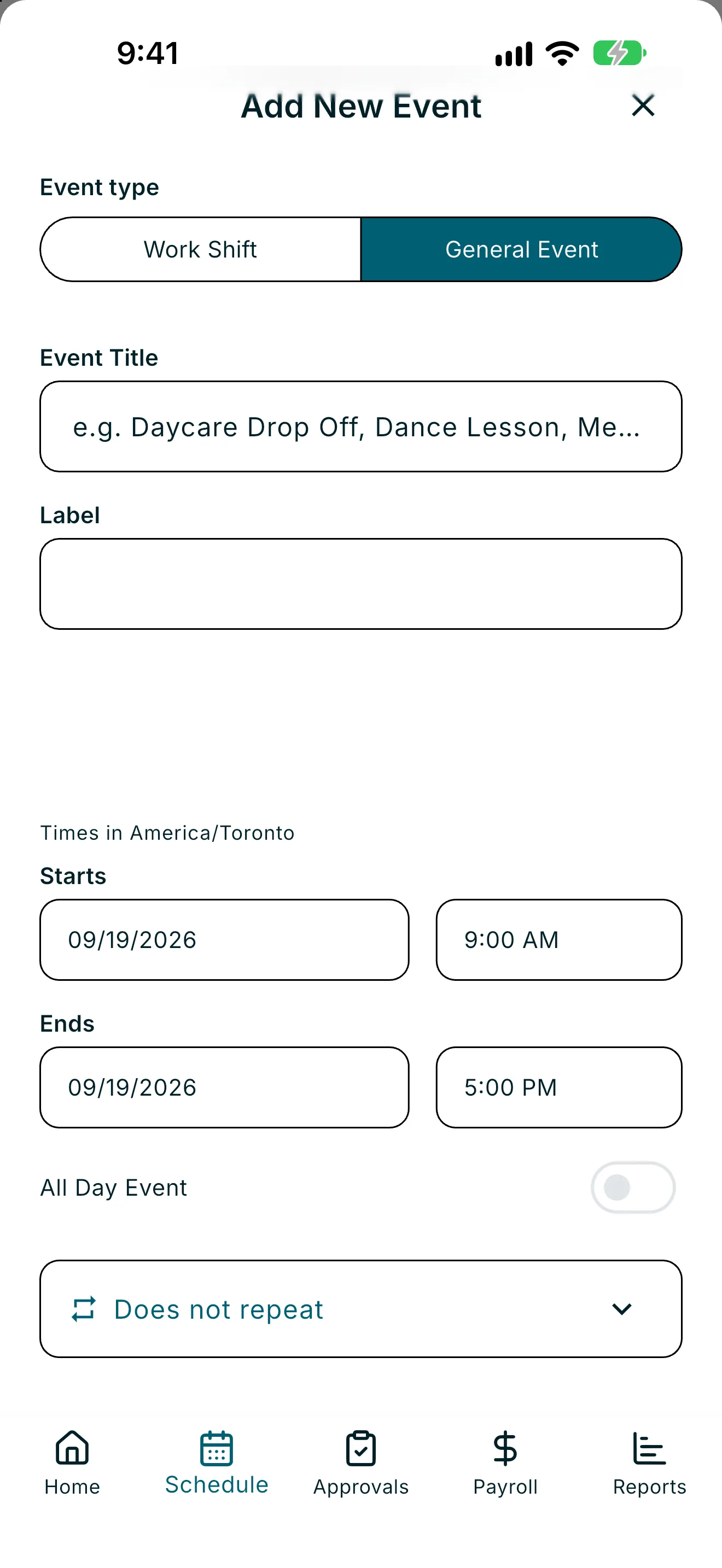
Add a general event
- From Schedule, tap +.
- Choose General Event as the event type.
Edit or delete a general event
- Tap a general event card (on the calendar, in the agenda list, or in a day summary).
- Tap the pencil icon to edit, or the trash icon to delete.
- If it repeats, choose This event only, This and following events, or All events, just like a recurring shift.
4. Filter the agenda list
On the Schedule screen, tap the filter icon next to “Shifts Scheduled for [Month]” to show or hide entry types: Shift, Stat, Time Off, and General Event. Toggle each one on or off, then tap Done.
Edge cases
- No events match the selected filters: shown in the agenda when your filter hides everything scheduled for the month; adjust the filter to see more.
- Could not delete event: check your connection and try again — the event stays on the calendar if the delete fails.
- All-day events: when All Day Event is on, the card shows “All Day” instead of specific start/end times.