
RoostPay calculates payroll deductions and tracks what you owe the CRA — it does not send money to the CRA on your behalf. You remit income tax, CPP, and EI to the CRA yourself, outside RoostPay, using the same Business Number and payroll account stored in your household settings.
1. Open Household settings
- Go to Settings, then select Household from the sidebar.
- Under CRA Account Details, you’ll see the note: “This information is used to process payroll and ensure remittances are applied to the correct CRA account.”
2. Update your CRA business details
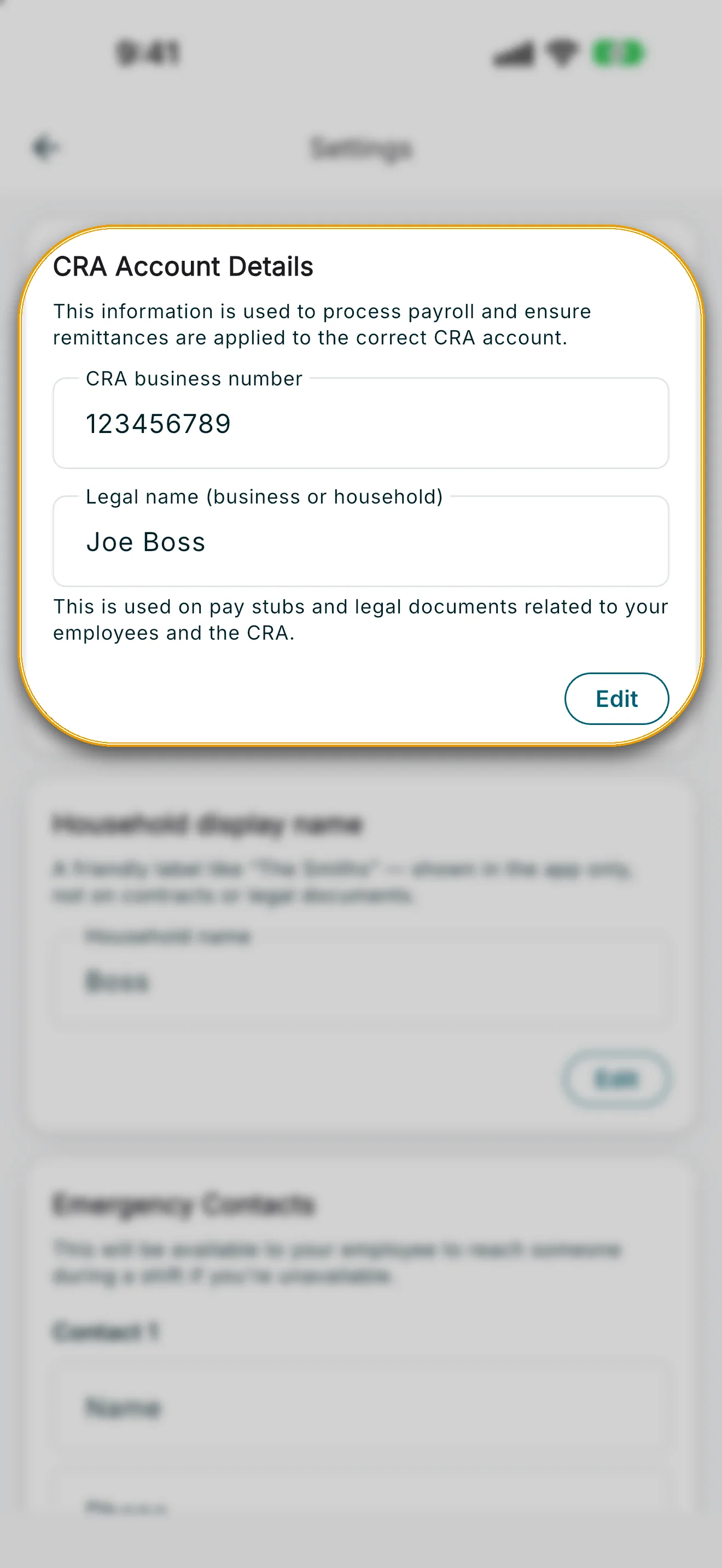
- Tap Edit on the CRA Account Details card.
- Update your CRA business number and your Legal name (business or household). This information is used on year-end tax forms (like T4 slips) and pay stubs — it is not used to route or send a remittance payment from inside RoostPay.
- Tap Save.
If your household has a linked co-employer, these CRA details are shared across both accounts — updating them here updates them for your partner too.
3. Household display name
Just below CRA Account Details, the Household display name card lets you set a friendly label (like “The Smiths”) shown only inside the app — it does not appear on contracts or legal documents. Tap Edit, update the Household name, and tap Save.
4. Track what you owe with the CRA remittance tracker
Your CRA remittance owing card on Home links to the CRA remittance tracker, which you can also open from the CRA remittance owing KPI. This hub tracks what you owe the CRA each month or quarter based on completed payroll, and lets you mark remittances paid after you send them outside RoostPay.
Periods are saved from completed pay runs once you already have an agreement. Until a pay run is complete, the tracker may not list a period yet.
- Tap the CRA remittance owing card on Home, or open it from a completed pay run.
- Each period tile shows the amount owed, the due date, and a status (Due, In progress, Overdue, or Paid).
- Tap a period to open the PD7A voucher figures for that period, so you can copy them into your remittance form or online CRA payment.
- After you’ve sent the remittance to the CRA outside RoostPay, tap Mark as paid, confirm the amount and period, then verify your identity to record it.
5. Payroll & Tax settings
Go to Settings, then select Payroll & Tax. This screen only covers:
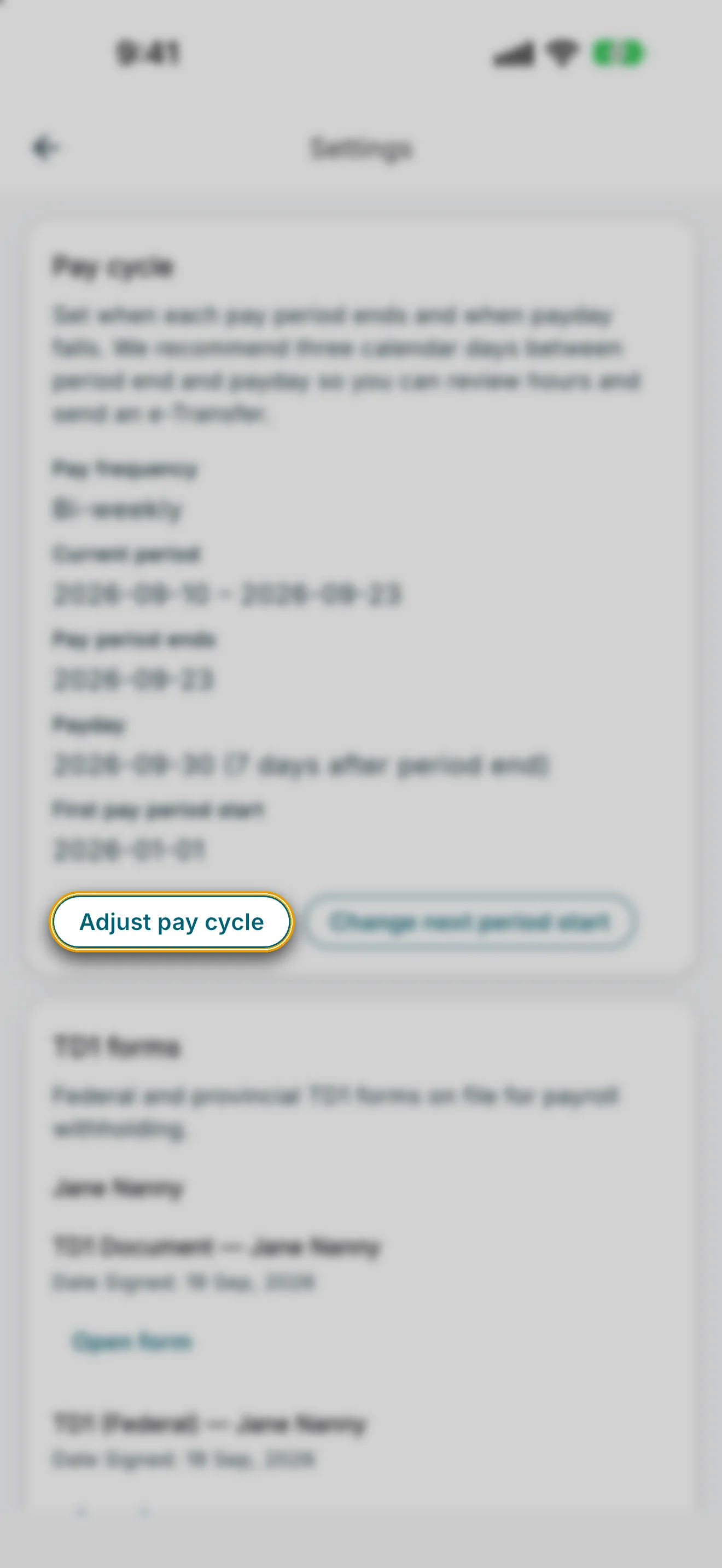
- Pay cycle settings — frequency (Weekly, Bi-weekly, or Semi-monthly), next period start, and payday lead time. Tap Adjust pay cycle to change them. See Pay Cycle Settings.
- TD1 forms — your employee’s federal and provincial tax forms, which affect how much is withheld and how much you’ll owe the CRA on their behalf.