
Before you can set up payroll for your caregiver, you need a RoostPay account. This article covers creating an account, signing in, and resetting your password if you forget it.
1. Open the welcome screen
When you open RoostPay without an existing session, you’ll see a welcome screen with three options:
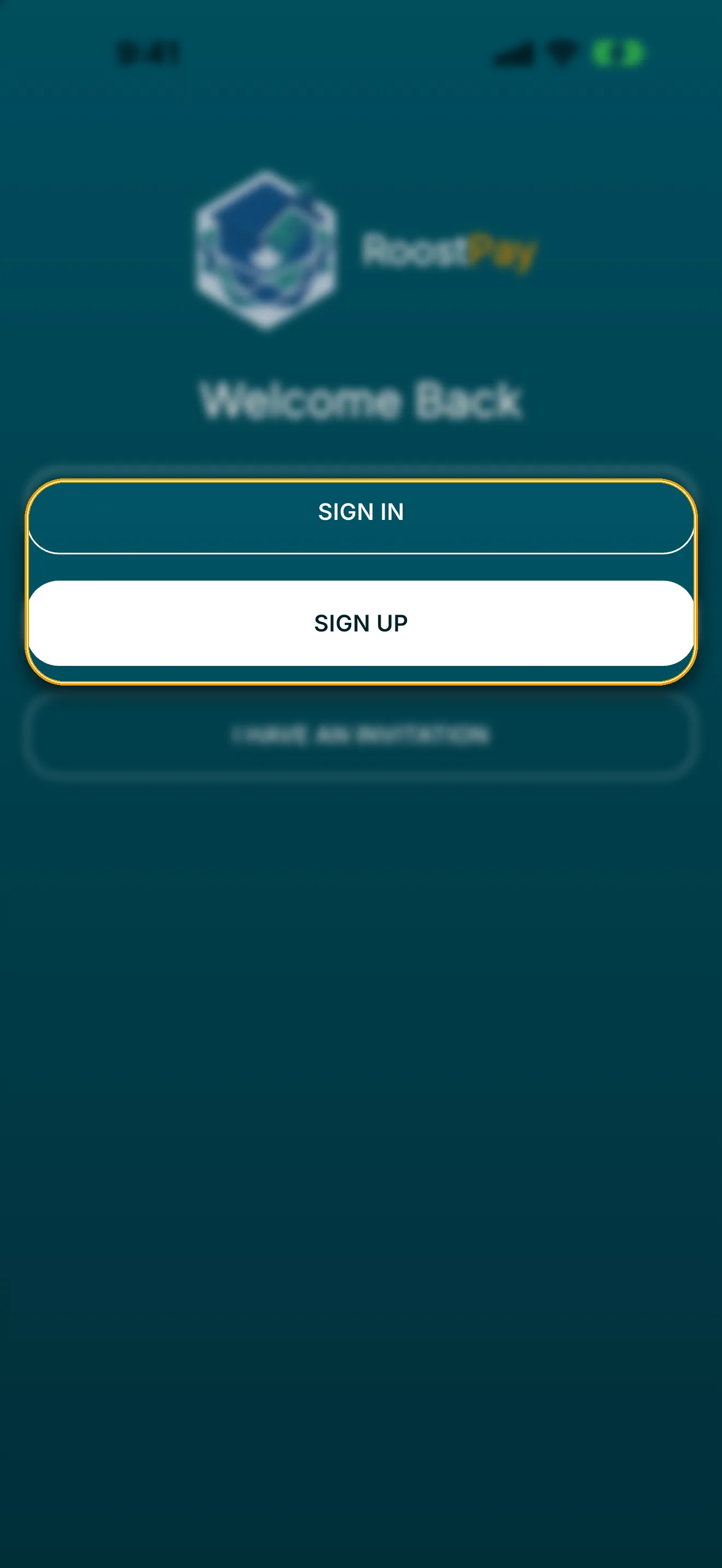
- SIGN IN — for employers who already have an account.
- SIGN UP — to create a new employer account.
- I HAVE AN INVITATION — for caregivers joining a household their employer already set up. Employers should not use this option.
2. Create a new account
- Tap SIGN UP. A sign-up sheet opens with the heading Create Your Account.
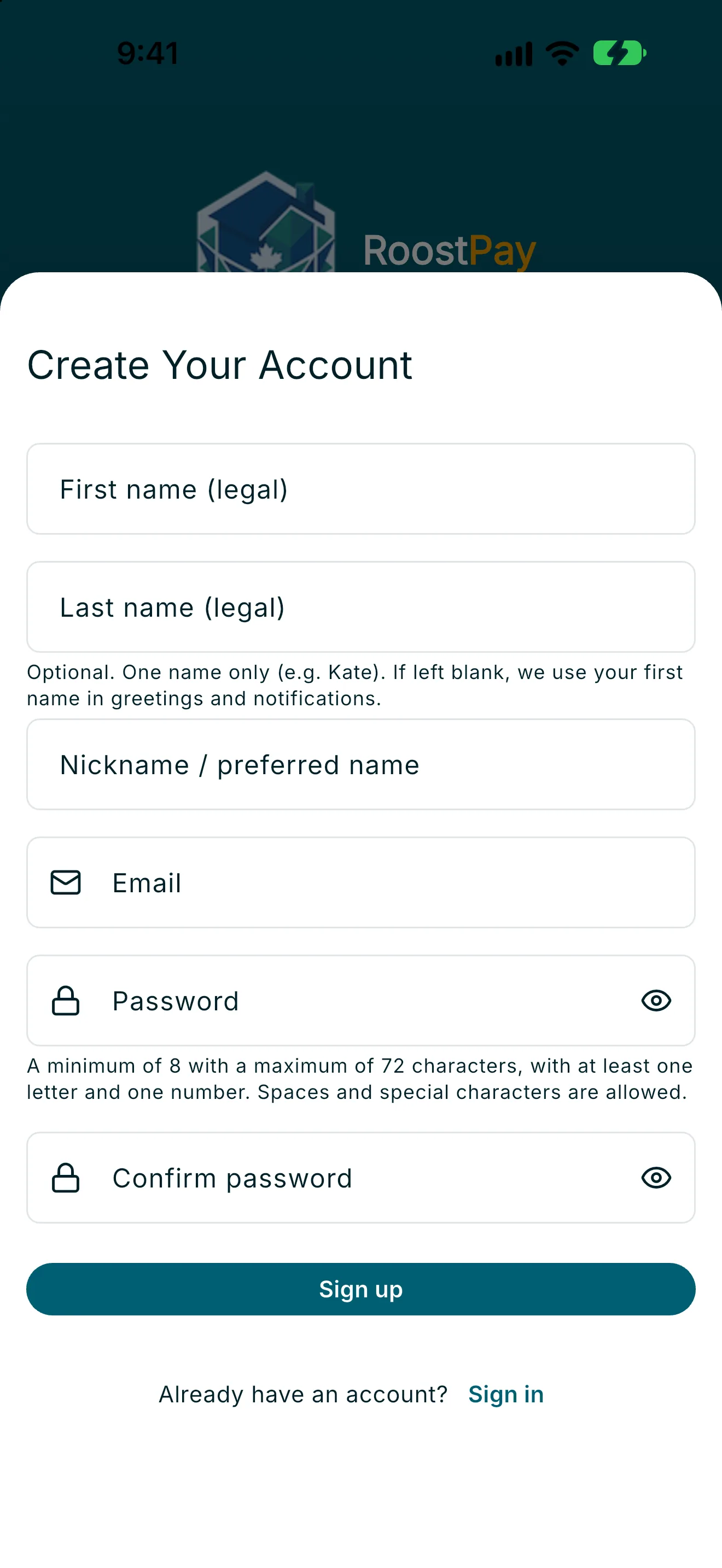
- Enter your First name (legal) and Last name (legal) — these are used on pay stubs and legal documents later, so enter them exactly as they appear on your ID.
- Optionally enter a Nickname / preferred name. If you leave it blank, RoostPay uses your first name in greetings and notifications.
- Enter your Email and a Password, then re-enter it under Confirm password.
- Tap Sign up.
If you already have an account, tap Sign in at the bottom of the sign-up sheet to switch to the sign-in form instead.
3. Sign in to an existing account
- Tap SIGN IN. A sign-in sheet opens with the heading Sign in to RoostPay.
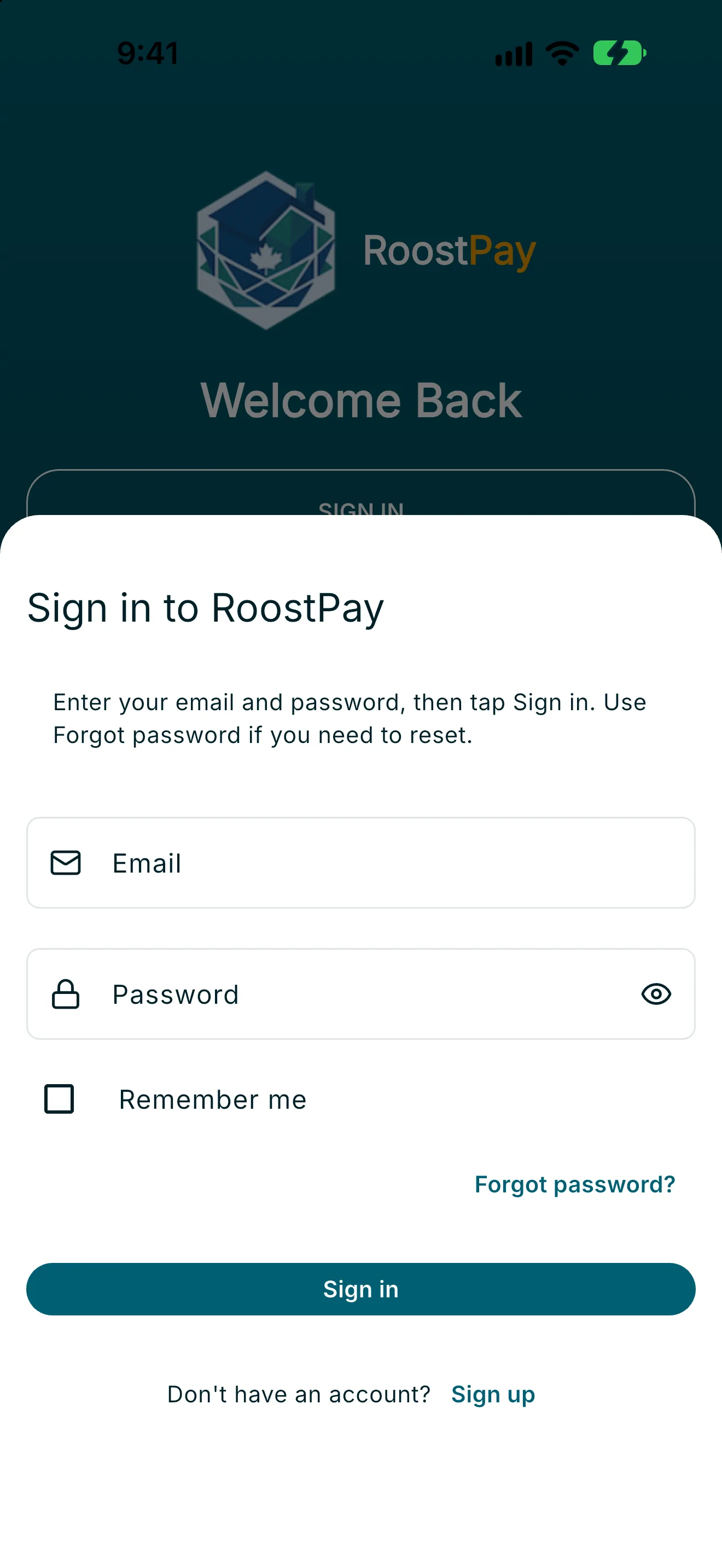
- Enter your Email and Password.
- Optionally check Remember me so RoostPay remembers your email next time.
- Tap Sign in.
If you previously set up a passkey on this device, you’ll also see a Sign in with Passkey button as a faster alternative to typing your password.
Sign-in is email and password (plus passkey when available). There are no Google, Apple, or Microsoft sign-in buttons in the RoostPay app.
4. Reset a forgotten password
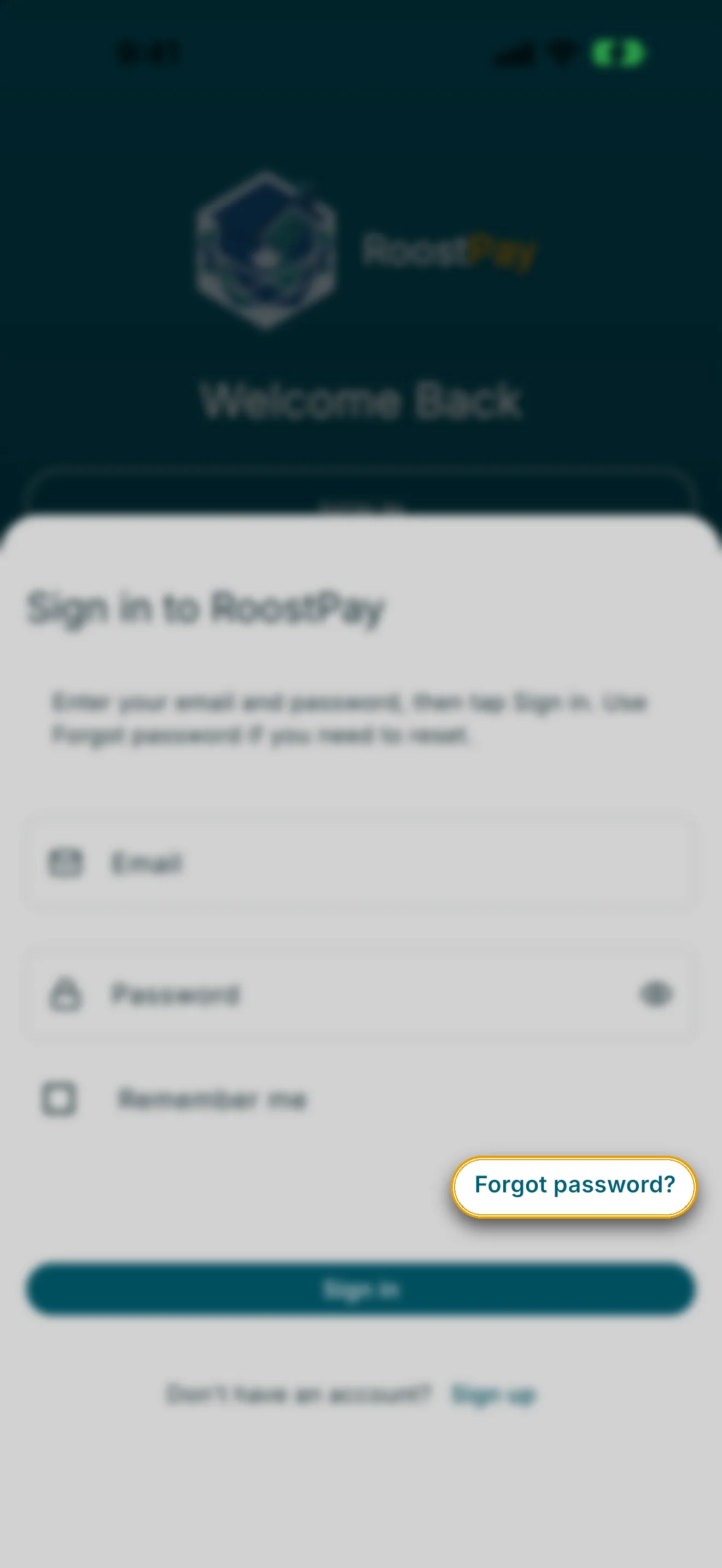
- From the sign-in sheet, tap Forgot password?.
- On the Reset password screen, enter your Email and tap Send reset link.
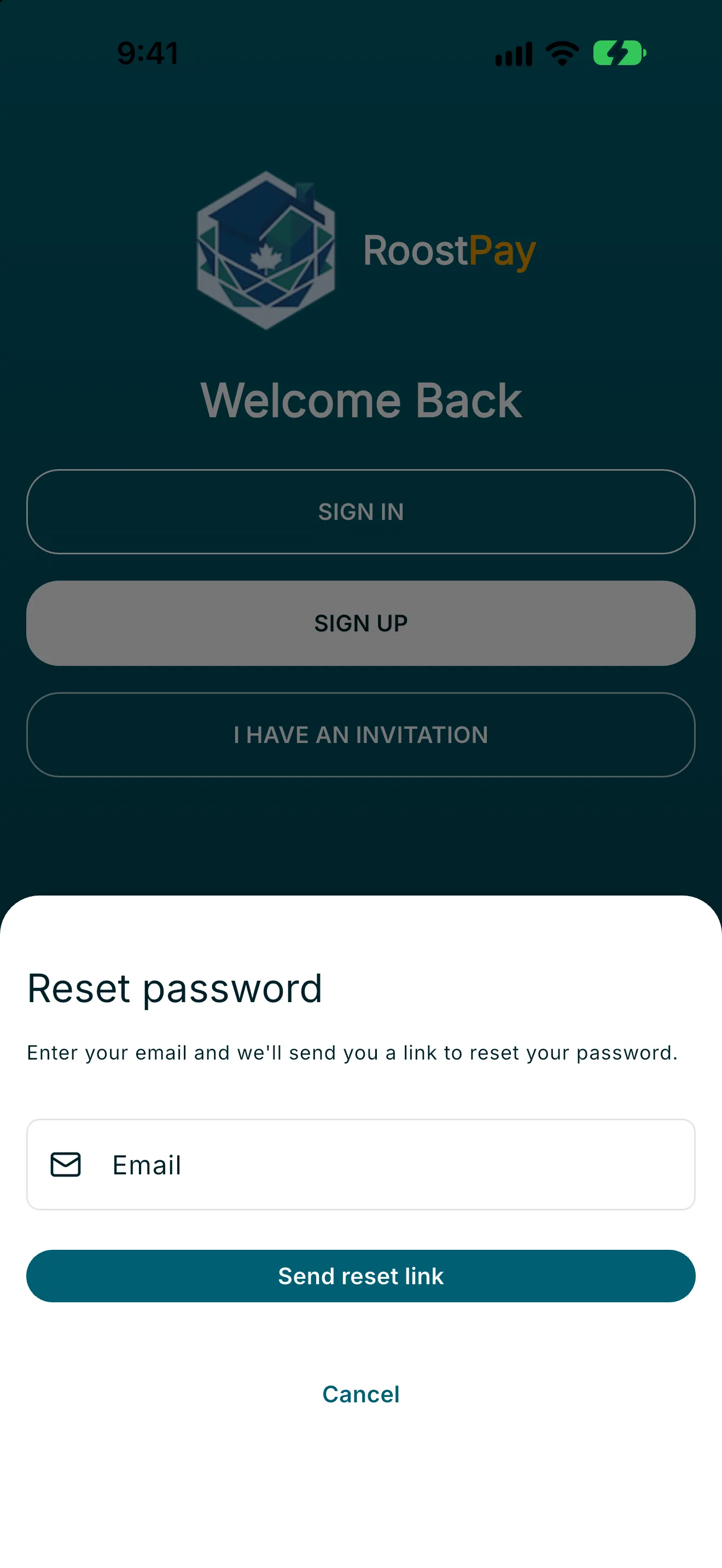
- Check your email for the reset link. Once you open it, RoostPay shows a New password and Confirm password field. Enter a new password in both fields and tap Update password.
- You’ll be signed out and returned to sign in with your new password.
You can tap Cancel at any point on the reset-password screens to return to sign in without making changes.
Edge cases
- Passwords do not match: shown if the password and confirm-password fields differ during sign-up or reset. Re-enter both fields.
- Too many sign-in emails or attempts: shown if you try to sign in or request a reset too many times in a short period. Wait a few minutes and try again.
- Couldn’t connect: shown if RoostPay can’t reach the server. Check your internet and try again.
- Email not confirmed: if your email needs confirmation, check your inbox for a confirmation link before signing in.