
Your Home screen is the starting point for running payroll, tracking shifts, and catching up on anything that needs your attention. This article walks through each section.
Before the contract is signed
Until your caregiver has signed, Home shows a setup card titled Let’s get your first payroll ready, with three steps:
- Add your caregiver
- Caregiver signs the contract
- Run your first payroll
The button on the card is Add your caregiver, Continue contract, or Check contract status, depending on where you are. Quick actions, the CRA and WCB cards, and the spouse invite stay hidden during setup. Agreement items that still need you, such as signing the contract, can still appear.
Payroll, Schedule, and Approvals show the same setup message until the contract is signed: No one to pay yet, or Almost ready once you are waiting on your caregiver’s signature.
On a phone, open the header menu and tap Help for Help & support (employer docs, caregiver docs, and contact). On a wider screen, use the help icon in the header.
1. The pay period card
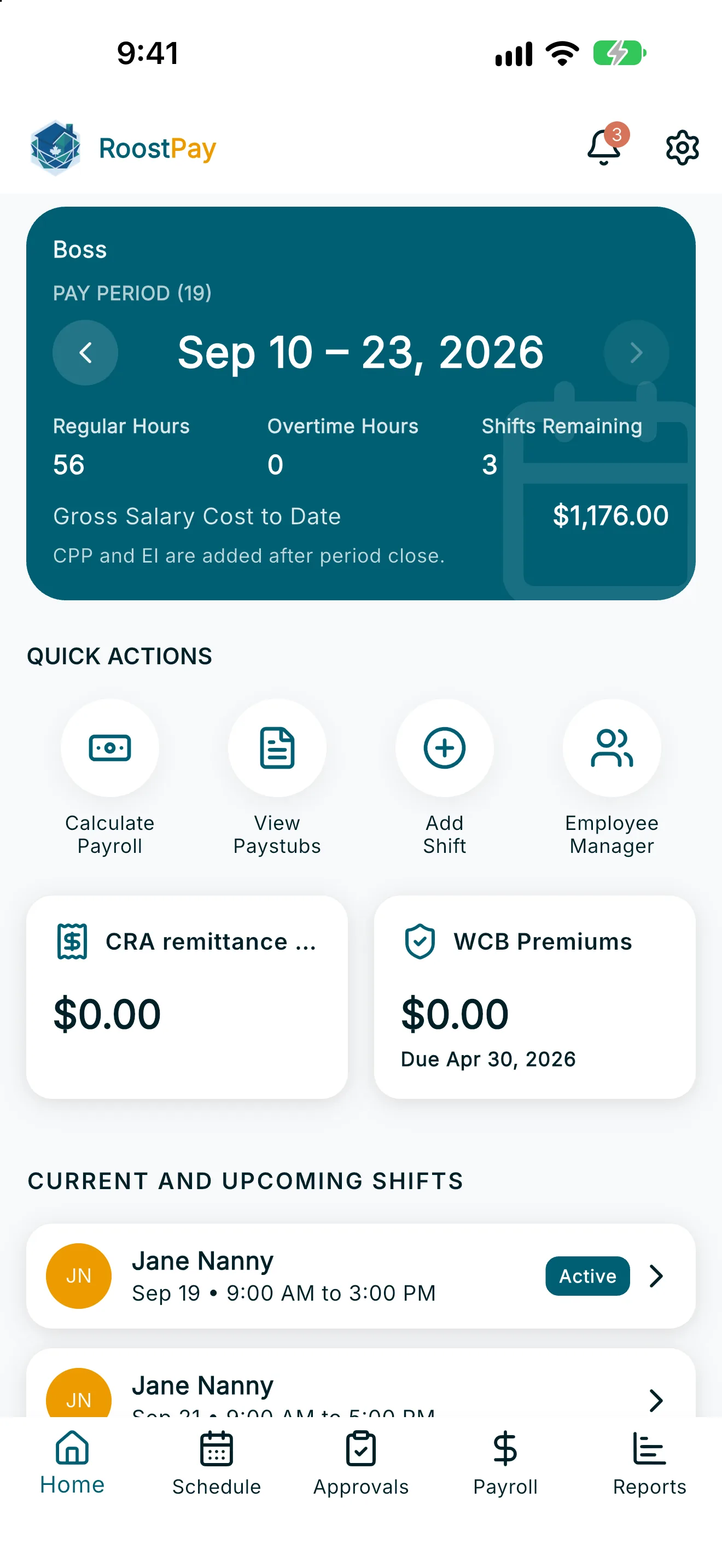
At the top of Home, a card shows your current Pay Period with the date range and:
- Regular Hours and Overtime Hours logged so far this period.
- Shifts Remaining for the period.
- An estimated gross pay-to-date figure, with a note that “CPP and EI are added after period close.”
- Left/right arrows to look at previous or upcoming pay periods, when available.
If you employ more than one caregiver, filter chips above the card let you switch which caregiver’s pay period you’re viewing.
Below it, two KPI cards show CRA remittance owing and WCB premiums owing, each with the amount and next due date. Tap CRA remittance owing to open the CRA remittance tracker (see CRA Remittance Settings and Tracking).
2. Quick actions
Below the pay period card, QUICK ACTIONS gives you one-tap shortcuts:
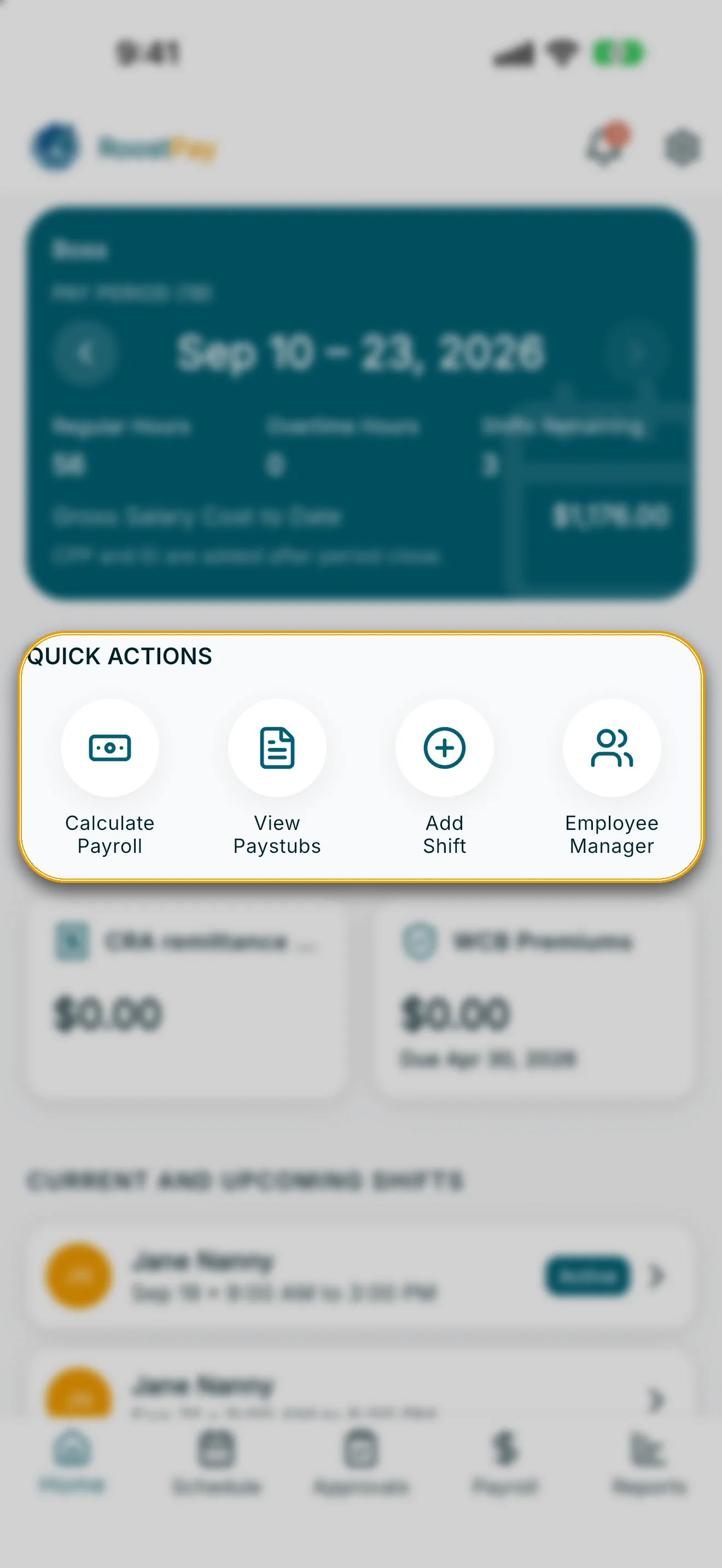
- Calculate Payroll — opens the payroll screen.
- View Paystubs — opens your paystub history.
- Add Shift — opens the schedule to create a new shift.
- Employee Manager — opens Household management (shown once you have at least one caregiver).
3. Urgent actions
If anything needs your attention, an URGENT ACTIONS section appears with a red button for each item. Depending on your household’s setup, you may see:
- CRA registration — tap Register CRA to complete your CRA Business Number and payroll account setup.
- Add an Employee — tap Add an Employee to start hiring, or Continue setup if you started but didn’t finish (including finishing the employment contract wizard).
- Invite spouse — tap Invite spouse to add a co-employer, or dismiss this card if it doesn’t apply to you.
- Contract signing — if you still need to e-sign, tap Sign contract to open the employer signing screen. If you’ve already signed and you’re waiting on your caregiver, tap Open profile to go to their employee profile.
- TD1 — tap Request TD1 to ask your employee to complete their tax forms, or Review once they’ve submitted them.
- Send T4 — appears once an employee has a T4 on file for the tax year that hasn’t been sent yet; tap Open year-end taxes to go to Reports → Year-end taxes (T4) and send it.
4. Current and upcoming shifts
The Current and Upcoming Shifts card lists your caregiver’s next scheduled shifts, showing the date, start and end time, and an Active tag if a shift is happening right now. Tap any shift to see details, or edit and remove it from there. If nothing is scheduled, you’ll see “No upcoming shifts.”
5. Pending actions
The PENDING ACTIONS section lists items waiting for your approval, each with a Review button:
- Pending shifts to approve.
- Time-off Request
- Sick Day Request
- Expense Claim
If nothing is waiting on you, this section shows “Nothing to see here - you’re all caught up!”
Edge cases
- Pull down on the Home screen to refresh all sections (pay period, urgent actions, and upcoming shifts) at once.
- If a data section can’t load, it’s hidden rather than showing an error — try refreshing again.