
Household management is where you keep track of everyone on your payroll — co-employers, caregivers who are still joining, and active employees. From here you can check payroll readiness, review contract and tax details, and open each person’s full record.
1. Open Household management
- From the Home screen (or the app menu), go to Household management.
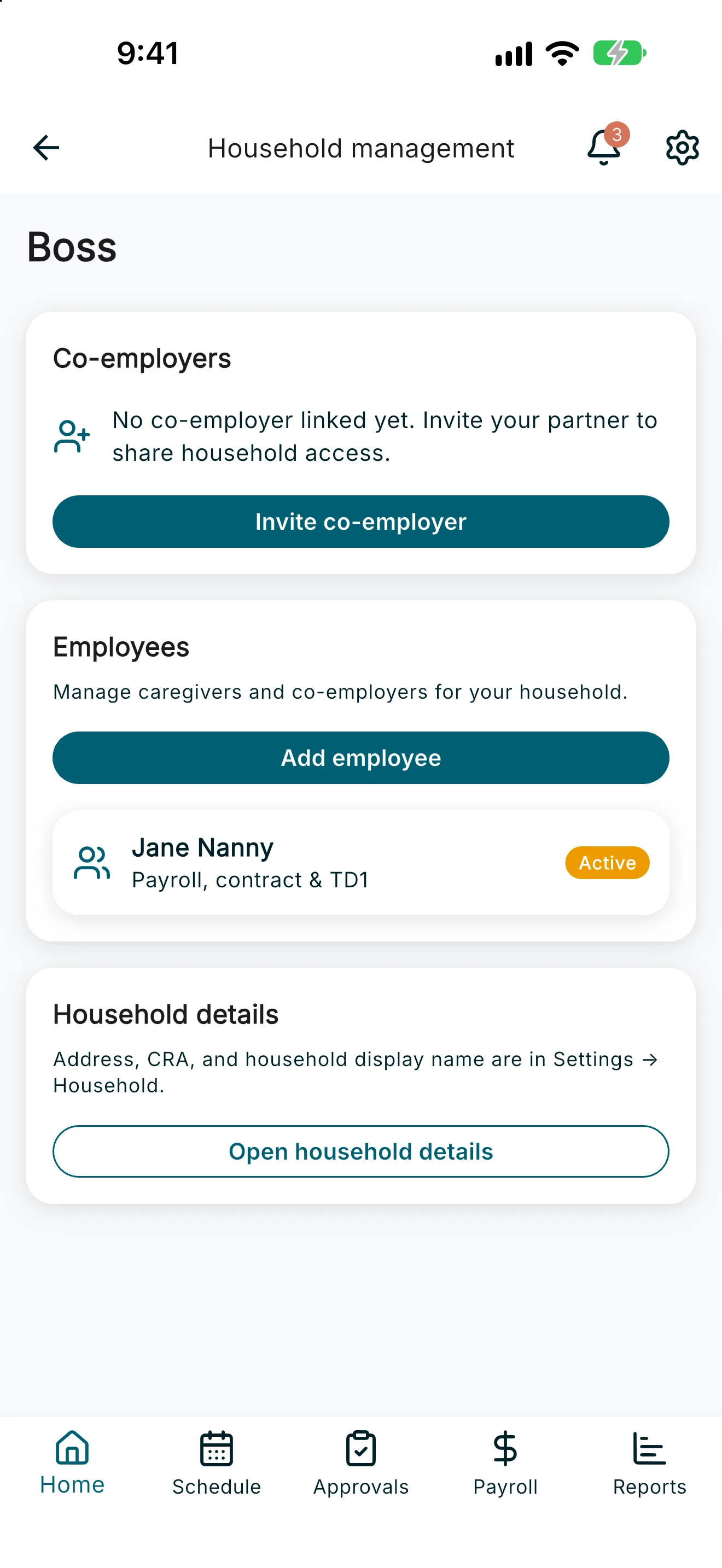
- You’ll see two sections: Co-employers and Employees.
2. Invite a co-employer
If you share this household with a spouse or partner, you can give them their own login to the same account.
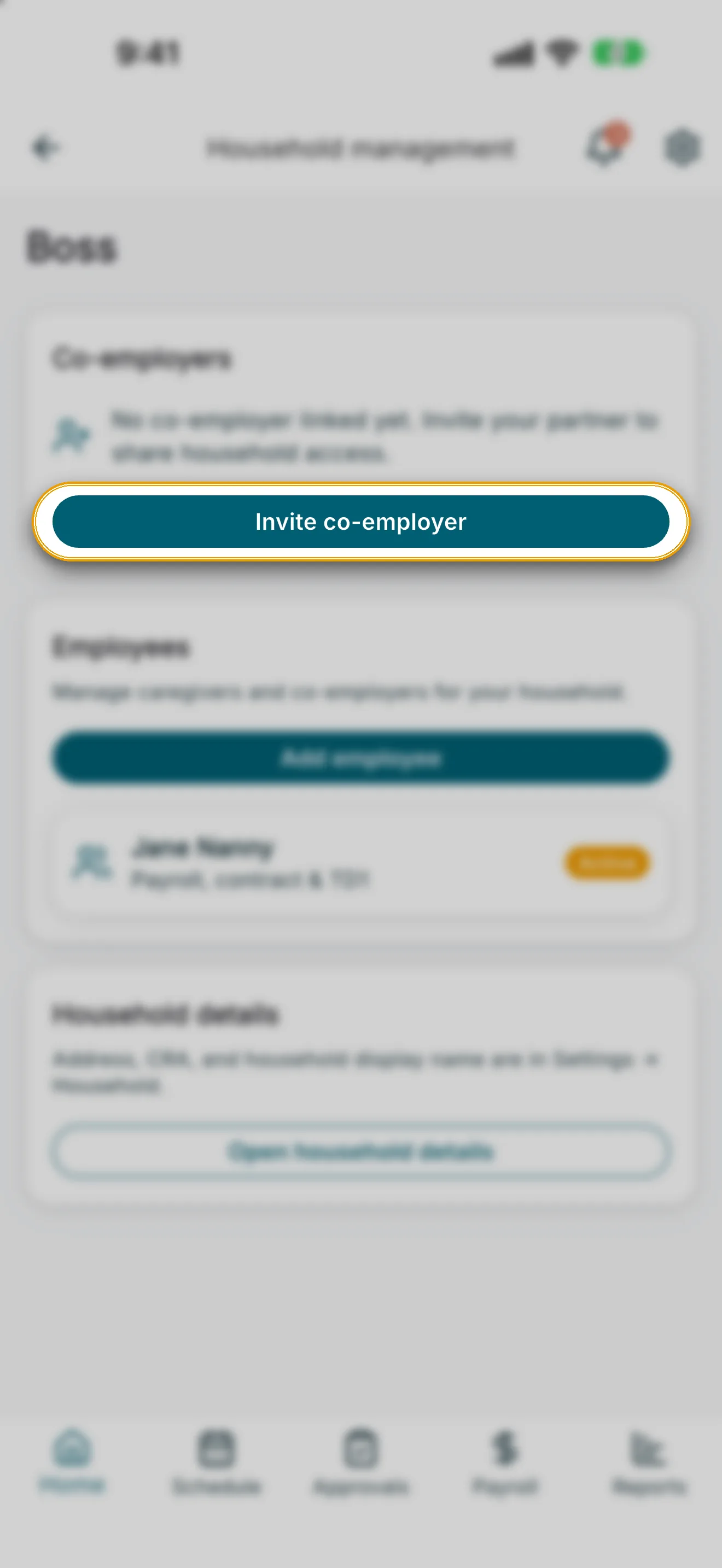
- Under Co-employers, tap Invite co-employer.
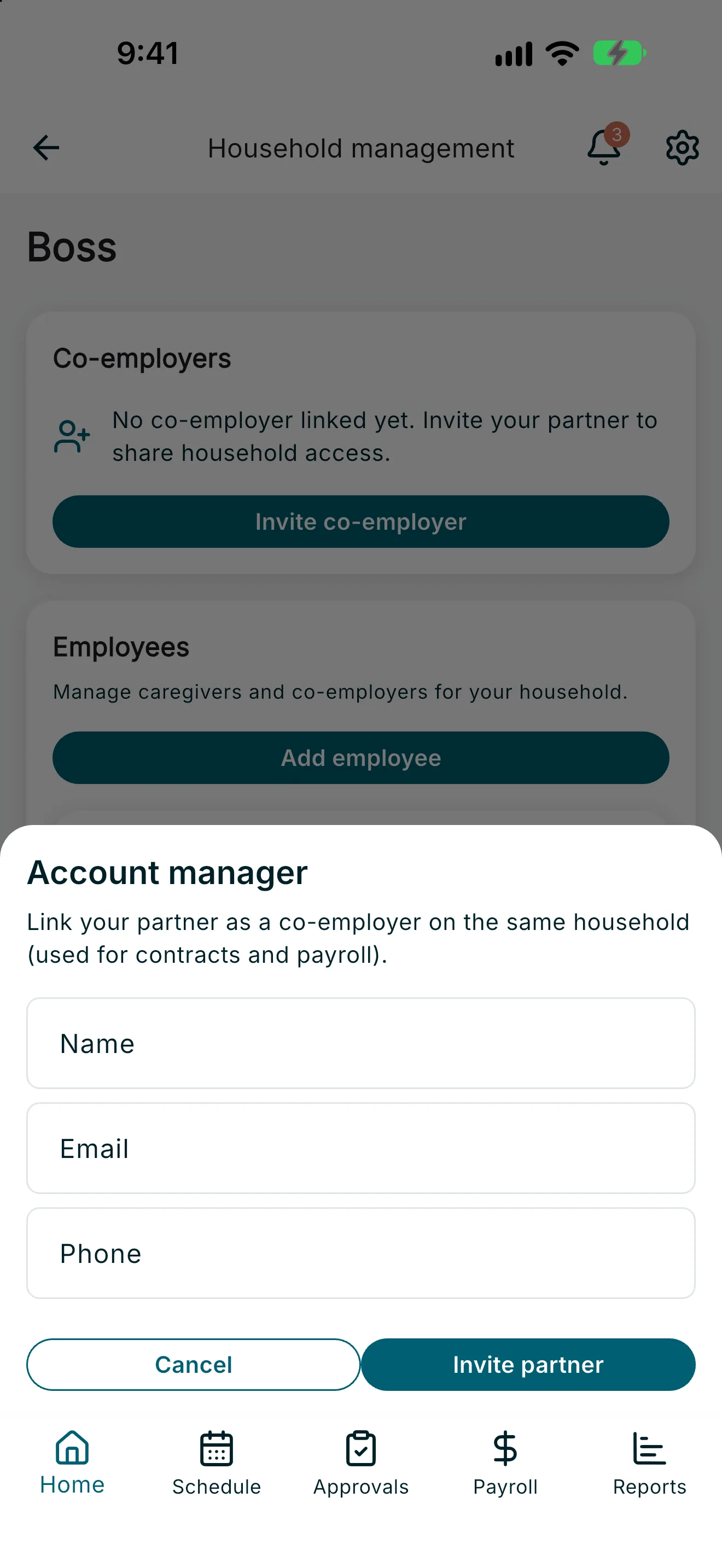
- Enter their details in the invite sheet and send it. This is the form your partner receives the invitation from:
- While the invite is outstanding, the section shows Invitation pending. Once they accept, it shows Linked as co-employer.
If you’re the primary employer and a co-employer is linked, their card also shows an Unlink co-employer option — confirm and verify your identity to remove their access to the household.
3. Add a new employee
- Under Employees, tap Add employee.
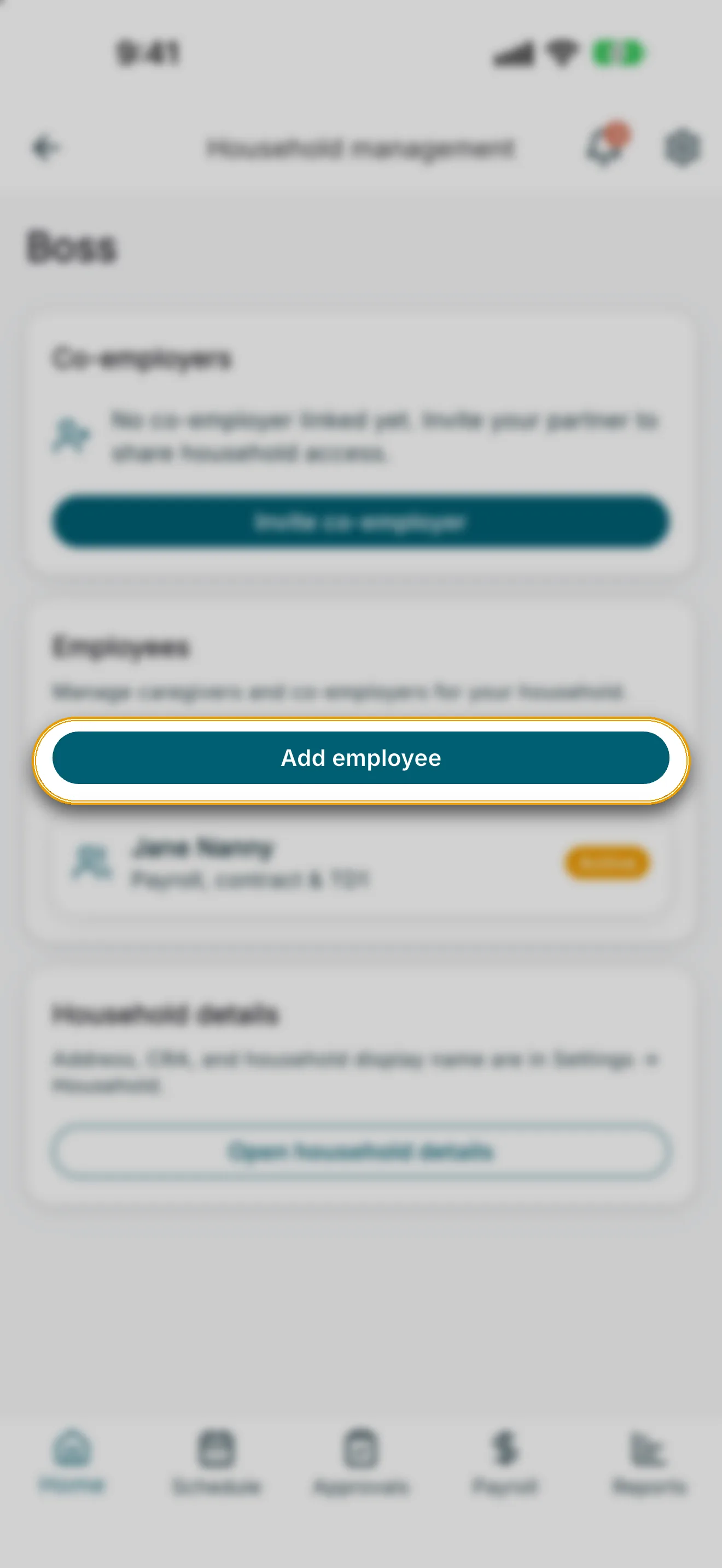
- This takes you to the hiring flow, where you can send a RoostPay invite or add an existing caregiver manually. See Adding a Caregiver for the full walkthrough.
If you haven’t added anyone yet, the Employees list shows: “No employees or contracts yet. Add an employee to start a RoostPay contract or enter an existing agreement.”
4. Understand the employee list
Each row in the Employees list shows:
- The employee’s name (or a placeholder if they haven’t joined RoostPay yet).
- A status chip: Invite pending, Draft, Pending, Active, Sent, or Completed.
- A subtitle of Payroll, contract & TD1 once the employee is linked, or a note that RoostPay is waiting for them to join.
- An in-progress contract shows Draft and Continue this contract. Tap that row to reopen the wizard.
Tap any other row to open that employee’s full record.
5. Review an employee’s record
Opening a row takes you to that employee’s detail page, which shows:
- Their name, email, contract status, and a Payroll ready fraction (for example, “Payroll ready 2 of 3”).
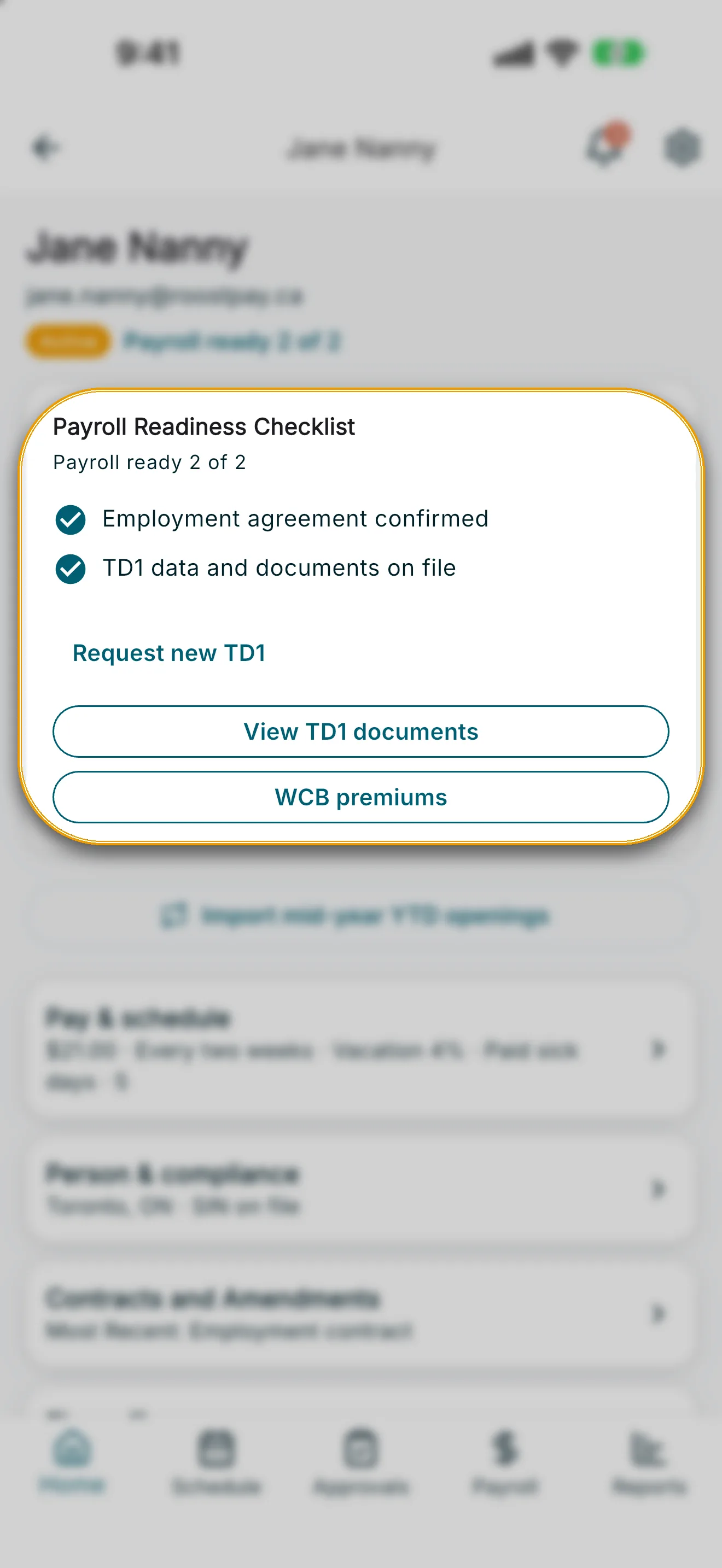
- A Payroll Readiness Checklist card confirming whether the Employment agreement confirmed, TD1 data and documents on file, and Profile, banking & emergency contacts on file items are complete.
- An Import mid-year YTD openings button — use this if the employee is switching to RoostPay partway through the year (see Switching Payroll Providers Mid-Year).
- Four summary cards you can tap to drill in: Pay & schedule, Person & compliance, Contracts and Amendments, and Time off.
- An End employment section at the bottom (see Ending an Employee’s Employment).
Payroll readiness checklist
If TD1 data and documents on file isn’t complete, tap Send request to complete TD1 (or Request new TD1 once one is already on file) to notify your employee. Tap View TD1 documents to see what’s been submitted.
Pay & schedule
Shows the hourly rate used for payroll, pay frequency (Every week, Every two weeks, or Semi-monthly), vacation policy and rate, and sick leave policy.
From here you can:
- Tap Update hourly rate to start a dual-signed wage amendment. See Wage Amendments.
- Tap Update pay frequency to open the same Adjust pay cycle sheet used in Settings. Choose the frequency, next period start, and payday lead time. When the frequency changes, the last step reviews those choices — tap Continue to sign. Both you and your caregiver must sign before the new frequency applies to payroll. See Pay Cycle Amendments.
- Tap Add hours averaging when the signed contract is in British Columbia, Ontario, Prince Edward Island, or Manitoba and averaging is not already on. You sign first, then your caregiver. See Hours Averaging.
If a signed contract exists, you’ll also see whether the payroll agreement Matches payroll agreement or Differs from payroll agreement, with an expandable Full contract terms section. After a pay-cycle amendment is fully signed, frequency on the agreement and contract stay aligned.
Person & compliance
Shows legal name, email, date of birth, phone, address, work permit expiry, and emergency contact.
- SIN: for privacy, the SIN is masked by default (
•••••••••). Tap Display SIN # to reveal it, or Hide SIN number to mask it again. If no SIN is on file, you’ll see SIN not on file. - Work permit expiry: tap View work permit to open the uploaded document. If none was provided, you’ll see “Work permit document not provided.” Older permits are listed under Previous work permits.
Contracts and Amendments
Lists every signed employment contract, wage amendment, pay-cycle amendment, and hours-averaging addendum for this employee. If the employment contract hasn’t been signed yet, you’ll see Resend caregiver invite so you can re-send the email with instructions to join.
Time off
Shows this calendar year’s Paid sick days used, Unpaid sick days taken, and Vacation days (days off).
Edge cases
- Couldn’t load your team list: pull to refresh, or try again — this usually clears on retry.
- Remove before any work or pay: a trash icon appears when the caregiver has not logged any shifts and has no earnings, including if they already joined. Remove employee permanently deletes the agreement. No Record of Employment is created. Once they have worked or been paid, use End employment instead. An invite that was never accepted can still be deleted the same way. Either action asks you to confirm and verify your identity, and it cannot be undone.
- Could not show SIN: if revealing the SIN fails, try again — nothing is changed or logged insecurely.