
When you’re ready to hire, RoostPay gives you two ways to bring a caregiver into payroll, plus a path for households switching from another payroll provider mid-year. This article explains how to choose.
1. Open the “Add a caregiver” screen
From Home, tap Add an Employee (or Continue setup if you already started), or from Household management tap Add employee. You’ll land on “How would you like to add your caregiver?” with three options.
2. Choose how to add your caregiver
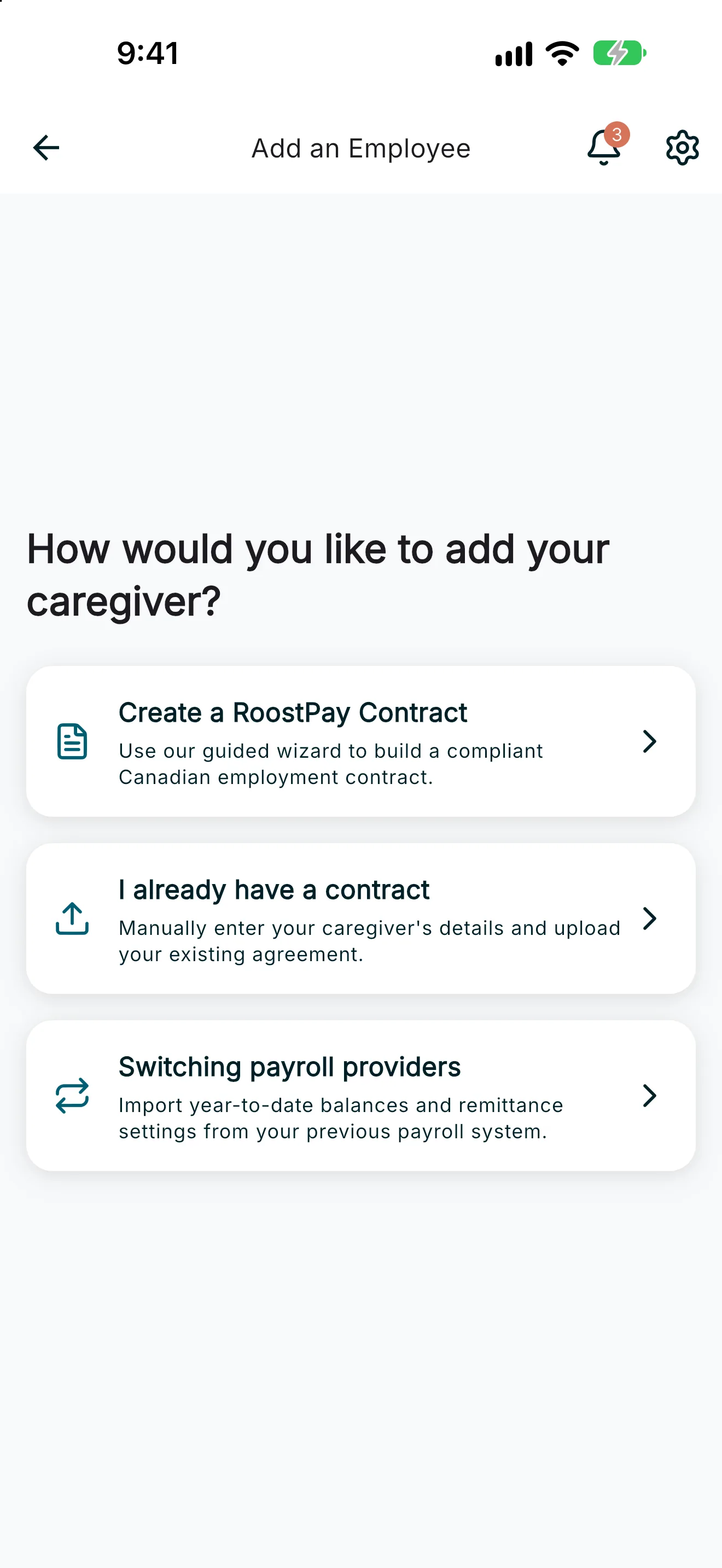
- Create a RoostPay Contract — the usual path. Use RoostPay’s guided wizard to build a compliant Canadian employment contract from scratch. Choose this if you don’t have a signed contract yet. A saved draft shows in Household management so you can continue it.
- I already have a contract — manually enter your caregiver’s details and upload your existing signed agreement as a PDF. Choose this if you already have a contract in place.
- Switching payroll providers — import year-to-date balances and remittance settings from your previous payroll system. Choose this if you’re moving an existing caregiver to RoostPay partway through the year.
Tap the card for the option you want.
Note: If you choose "Create a RoostPay Contract," RoostPay creates a new agreement immediately and takes you into the contract wizard — you can't cancel out of agreement creation once you tap this card.
3. What happens next
- Create a RoostPay Contract takes you straight into the contract wizard steps.
- I already have a contract takes you into the manual caregiver entry flow (four steps: caregiver & document, payroll setup, compliance & deductions, and overtime rules).
- Switching payroll providers first asks you for your prior provider’s year-to-date figures, then returns you here so you can choose the wizard or manual upload for the new agreement.
Edge cases
- We could not load your profile: shown if RoostPay can’t confirm your employer profile before creating a new agreement. Sign in again and try once more.
- If starting a new contract fails to save, you’ll see an error message and can try again from this screen.