
Control how and when RoostPay notifies you about shifts, time off, expenses, payroll, and other household activity.
1. Open Notification Settings
Go to Settings > Notifications.
2. Choose a notification sound
Use the Notification sound dropdown to pick Default or Silent.
3. Turn channels on or off for every category at once
Use the three buttons near the top to enable or disable a whole delivery channel across every category in one tap:
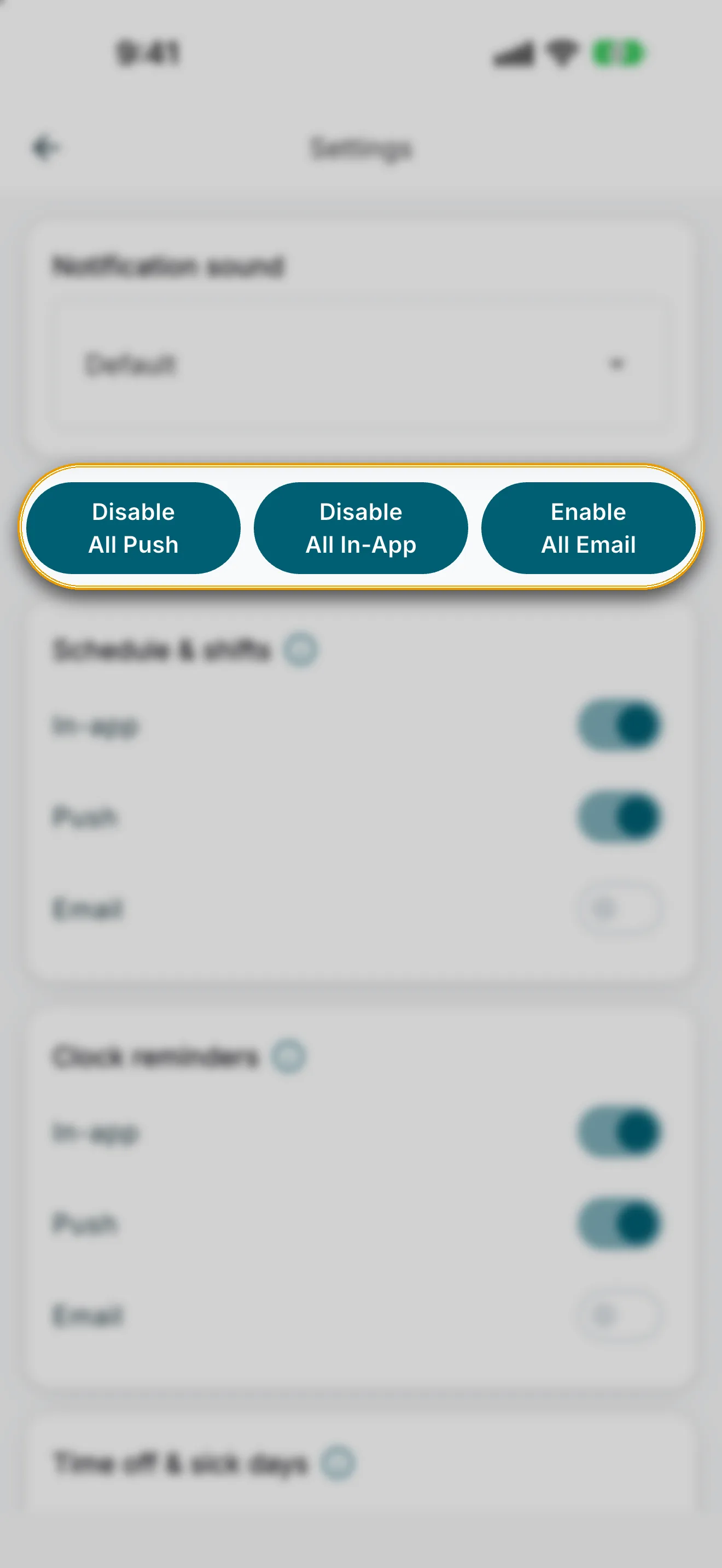
- Enable All Push / Disable All Push
- Enable All In-App / Disable All In-App
- Enable All Email / Disable All Email
4. Fine-tune a single category
Each category has its own card with three switches — In-app, Push, and Email. Turn all three off to mute a category completely. Tap the info icon next to a category name for a short description of what it covers. The categories are:
- Schedule & shifts — schedule changes and submitted-shift updates such as rejects or amended clock times.
- Clock reminders — reminders when a shift is ending and alerts when a shift auto-closes because clock-out was missed.
- Time off & sick days — vacation and sick-day requests, amendments, removals, and approval or decline outcomes.
- Expense claims — new or updated expense claims and approval or rejection outcomes.
- Payroll & tax — pay stubs, TD1 tax form requests and completions, contract or wage updates, and payroll submit alerts.
- Work permits — work permit additions or updates and upcoming expiry reminders.
- Household & system — household partner activity and contract archive consent requests between co-employers.
Note: The bulk buttons and the per-category switches control the same settings — using a bulk button updates every category's switch for that channel at once.