
Manage identity checks, passkeys, your password, signed-in devices, and legal documents.
1. Open Security settings
Go to Settings > Security.
2. Require confirmation for sensitive actions
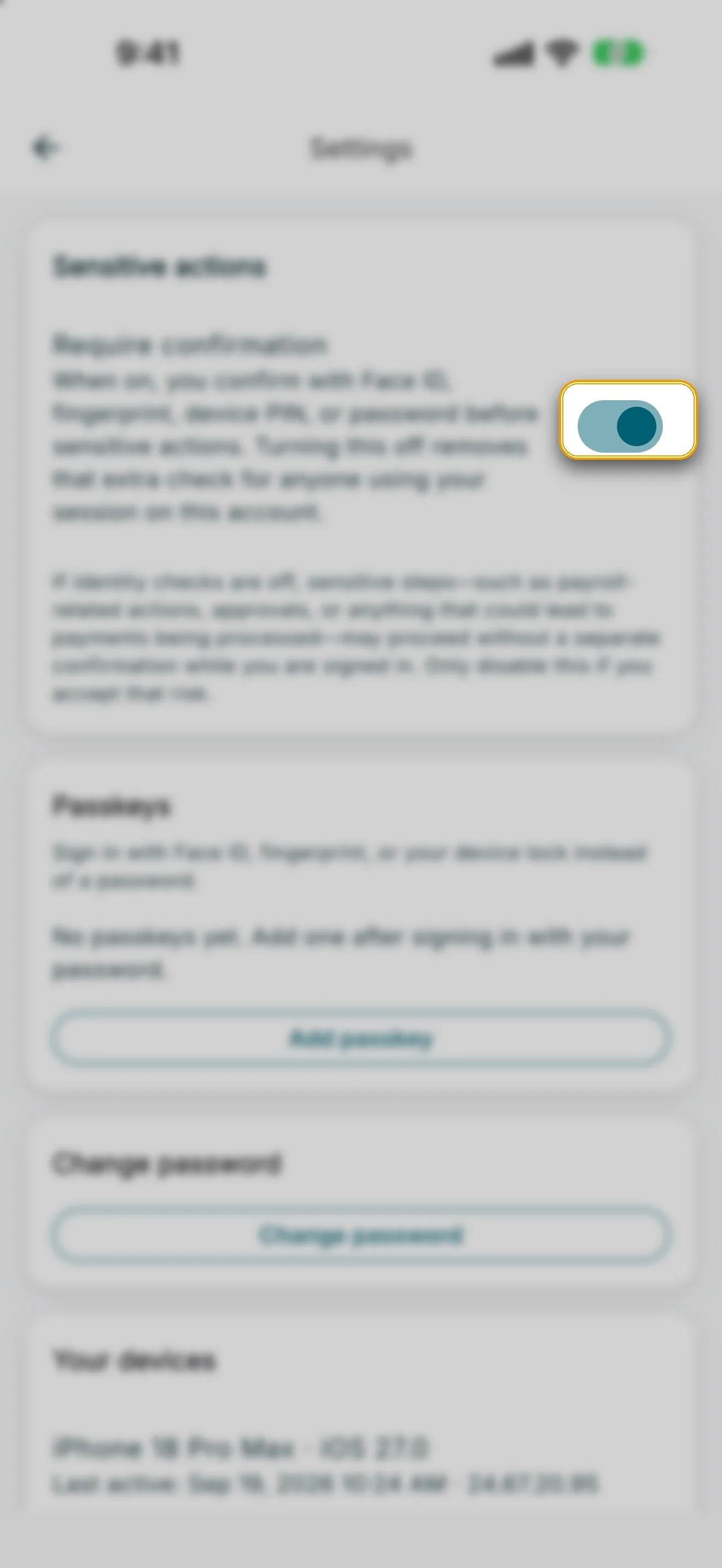
Under Sensitive actions, the Require confirmation switch controls whether RoostPay asks you to verify your identity (Face ID, fingerprint, device PIN, or password) before sensitive actions like payroll submissions and approvals.
Note: If you turn this off, sensitive steps — including payroll-related actions, approvals, or anything that could lead to payments being processed — may proceed without a separate confirmation while you're signed in. Turning it off requires your password and applies to every device where you use this account.
3. Manage passkeys
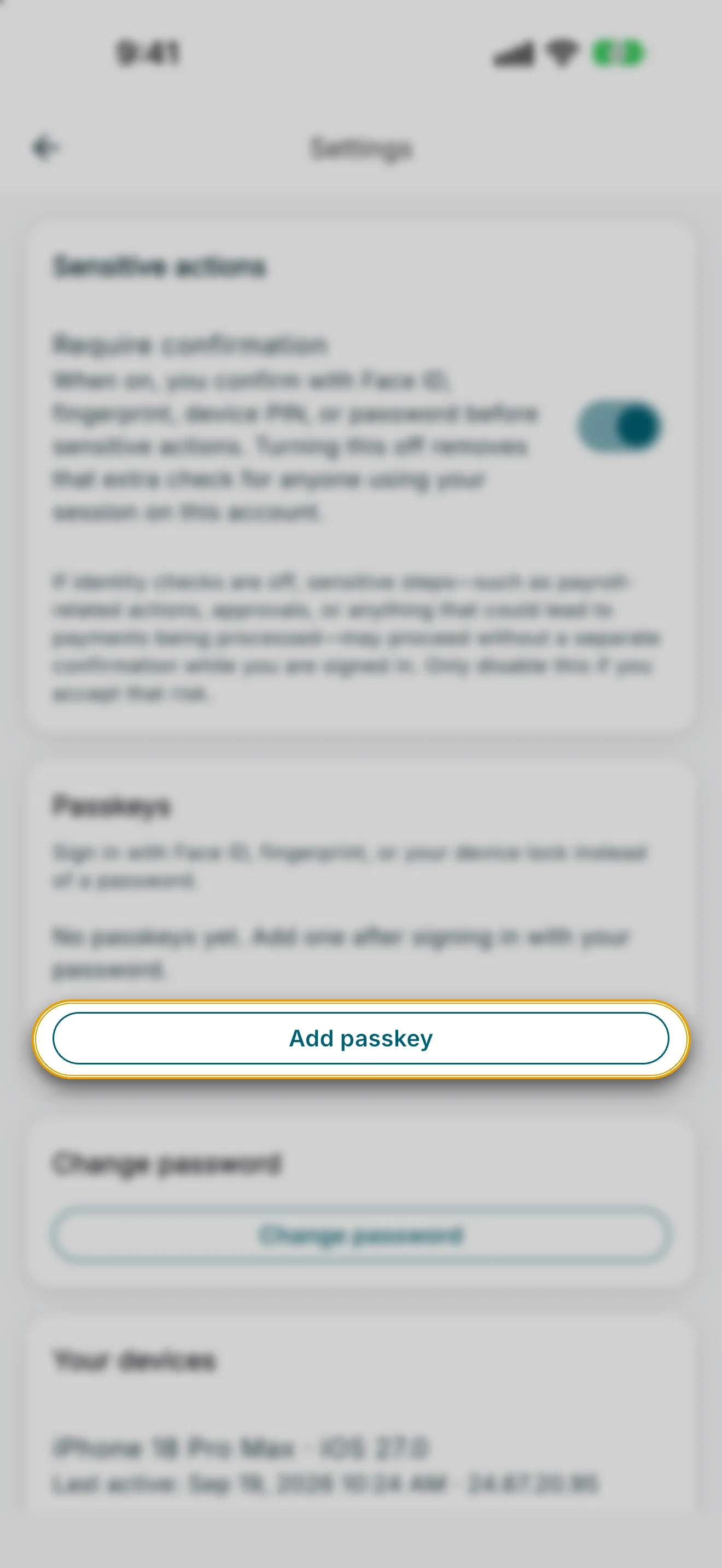
Under Passkeys, you can sign in with Face ID, fingerprint, or your device lock instead of typing a password.
- Tap Add passkey to register a new passkey on this device.
- Tap Remove next to an existing passkey to delete it.
4. Change your password
Under the password card, tap Change password, enter your current and new password, and confirm.
5. Manage your devices
Under Your devices, you’ll see every device signed in to your account, with when it was last active.
- Tap Sign out of all other devices to sign out everywhere except the device you’re using now.
- Tap Sign out everywhere to sign out of every device, including this one. You’ll need to sign in again — RoostPay asks you to confirm before doing this.
6. Legal documents
Go to Settings > Legal.
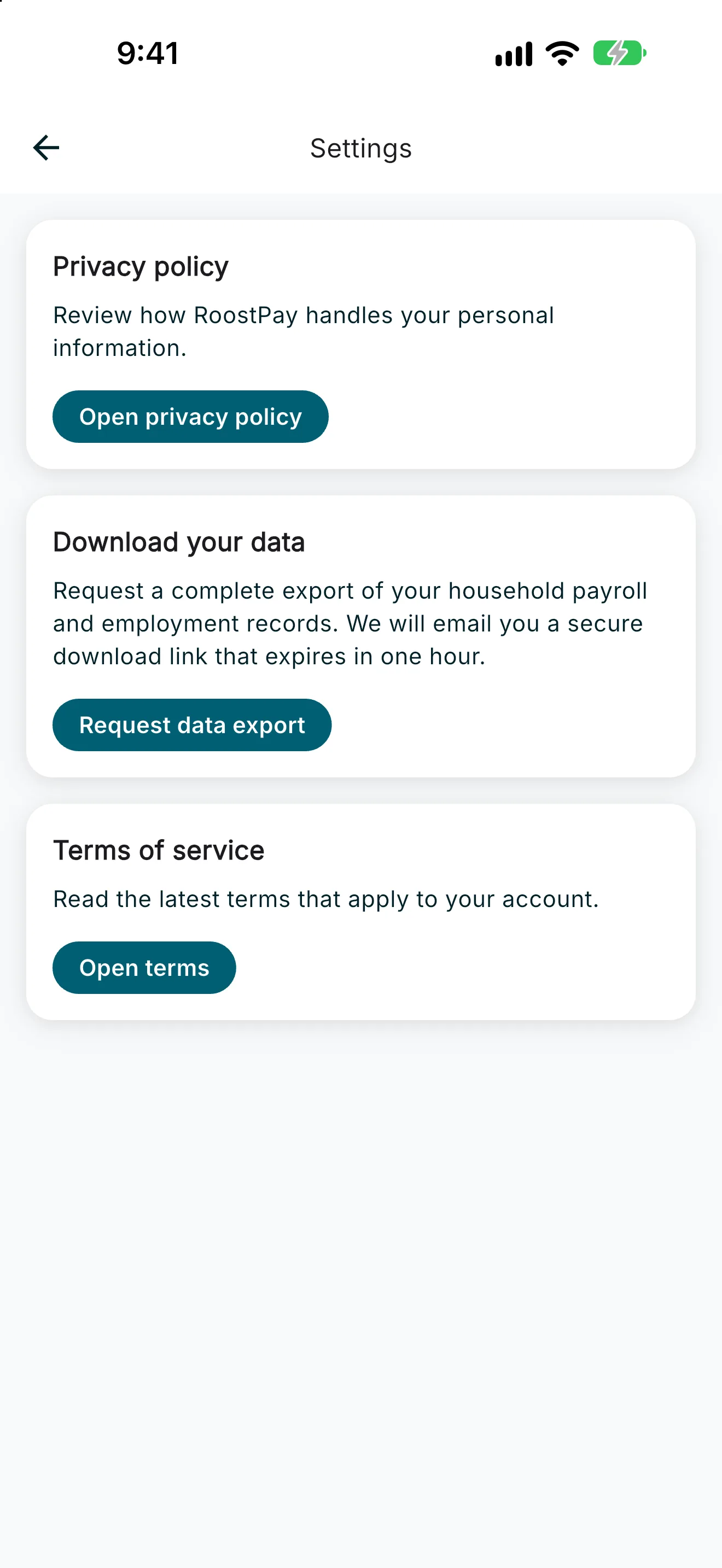
- Tap Open privacy policy to review how RoostPay handles your personal information (opens roostpay.ca/privacy).
- Tap Open terms to read the terms of service that apply to your account (opens roostpay.ca/terms).
- Tap Request data export to ask RoostPay for a copy of your personal data (PIPEDA data export).