
Subscribe to your RoostPay schedule from Apple Calendar, Google Calendar, or Outlook using a private link.
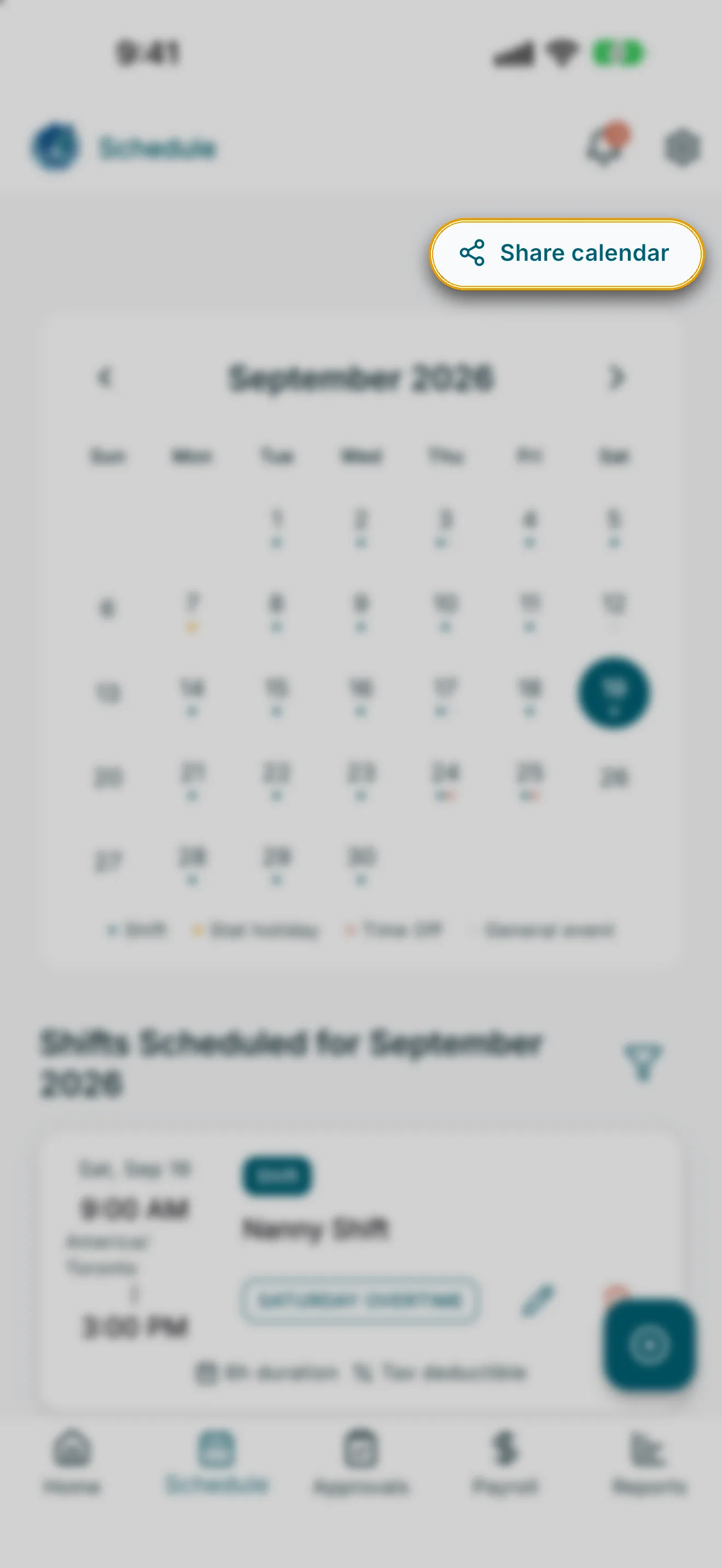
You can also start from the Schedule screen by tapping Share calendar:
1. Open Schedule settings
Go to Settings > Schedule. You’ll see the External calendar card.
2. Turn on calendar sync
Turn on Enable External Calendar Sync.
Note: Anyone with the subscription link can see the events you choose to export, so only share it with people you trust.
3. Choose what to export
Once sync is on, two switches appear:
- Export Shifts — include scheduled shifts in the feed.
- Export General Events — include general calendar events in the feed.
4. Get your subscription link
Under Subscription link, tap the copy icon next to the link to copy it (you’ll see Link copied), or tap Add to Calendar to open the link directly in your calendar app.
5. Turn off calendar sync
Turn off Enable External Calendar Sync at any time to stop sharing your schedule and remove access to the subscription link.