
The Settings menu is where you manage your account, household, payroll preferences, notifications, schedule, security, and legal information.
1. Open Settings
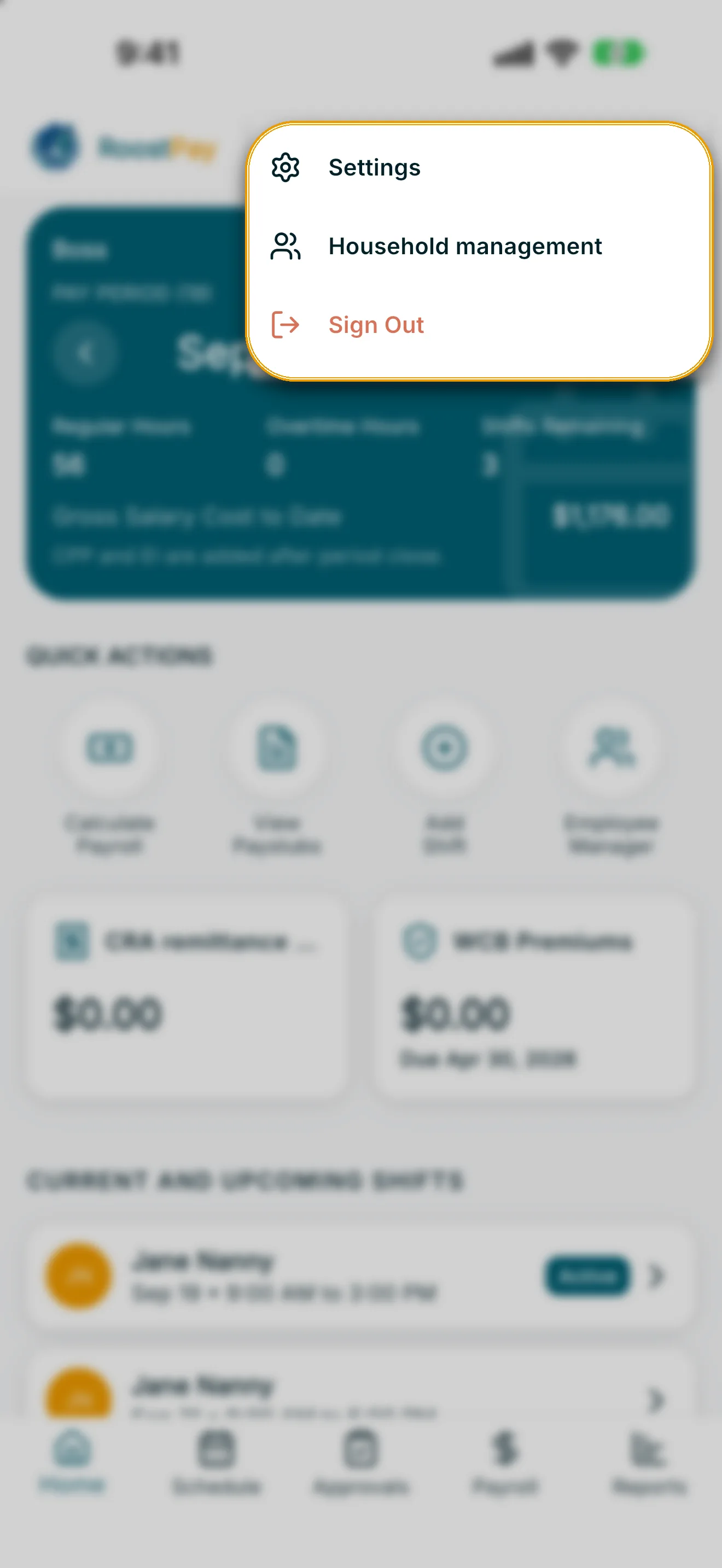
Tap the gear icon in the header, then choose Settings from the menu. On a phone, you’ll see a list of categories. On a wider screen (like the web dashboard), the categories appear as a sidebar with the selected section shown alongside it.
2. Choose a category
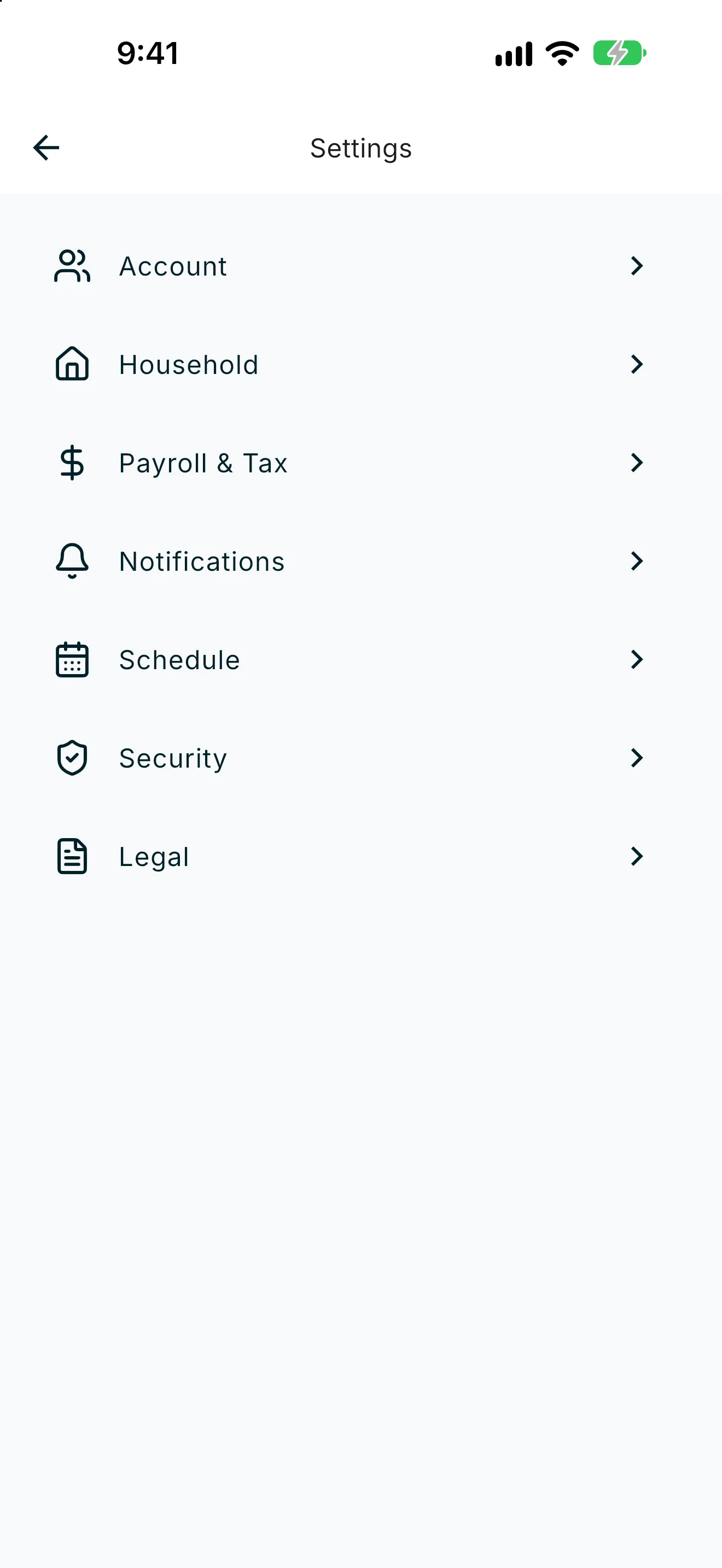
- Account — your name, contact details, and account email. See Account and Household Settings.
- Household — CRA business details, household display name, and emergency contacts. See Account and Household Settings.
- Payroll & Tax — pay cycle settings (Weekly / Bi-weekly / Semi-monthly, next period start, and payday lead time) and TD1 forms. Tap Adjust pay cycle to change the schedule. See Pay Cycle Settings. RoostPay calculates and tracks payroll only; there is no auto-approve toggle or bank connection here. Also see CRA Remittance Settings and Tracking.
- Notifications — notification sound and delivery preferences. See Notification Settings.
- Schedule — external calendar sync. See Schedule Settings and Calendar Sync.
- Security — identity checks, passkeys, password, and devices. See Security and Legal Settings.
- Legal — privacy policy, terms of service, and requesting a data export. See Security and Legal Settings.
- About — the version and build installed on this device, and What’s new from published release notes. If nothing has been published yet, you’ll see No published release notes yet.
3. Return to Home
Tap Home at the top of the settings list to leave Settings and go back to your Home dashboard.